You’ve seen the Blueprints. You’ve seen the “God-Mode” dashboards. But how do you actually start? If you’re ready to stop doing manual labor and start building custom tools for your store, this is your Day 1 briefing.
1. What is Shopify Sidekick?
Sidekick is an AI-powered commerce assistant built directly into your Shopify Admin. Unlike general AI, Sidekick has contextual access to your store—it knows your products, your inventory, and your customers.
More importantly, it has the ability to write and execute code, allowing it to build custom interfaces (Apps) specifically for your workflow. It isn’t just a chatbot; it’s a developer in your sidebar.
2. Where to Find the “Spark”
Look for the Sidekick icon (the purple sparkle chat bubble) in the top-right corner of your Shopify Admin.
- Pro Tip: If you don’t see it, ensure you are logged in as the Store Owner or have “Manage Apps” permissions enabled.
3. The Secret Key: Unlocking App Development
Before you can run a Blueprint from the Lab, you must give your store permission to create custom code. If you skip this, Sidekick will tell you it “doesn’t have the ability to build apps.”
The Fast-Track Activation:
- Open the Sidekick sidebar.
- Click the
+(Plus) icon next to the prompt window. - Select “Create an app” from the menu.
- If development mode isn’t on, Sidekick will provide a direct link to “Allow custom app development.” Click it, confirm, and you’re Lab-ready.
4. Sidekick Capabilities by Tier
You do not need a Shopify Plus account to use the Blueprints on this site. As long as you have Sidekick access, you can build.
| Feature | Basic / Shopify / Advanced | Shopify Plus |
| Store Analytics | Full Access | Full Access |
| Product & Tag Edits | Full Access | Full Access |
| Custom App Building | Enabled | Enabled |
| High-Volume Workflows | Standard | High Performance |
5. Basic Prompts vs. Lab Blueprints
There is a massive difference between asking for a favor and building a machine.
- A Basic Prompt: “Tag my last 10 products as ‘New Arrival’.” (A one-time task).
- A Lab Blueprint: “Build a dashboard that lets me manage ‘New Arrival’ tags for my entire catalog with one click.” (A permanent tool).
The Blueprints on sidekickitapps.com are designed to create the latter—permanent, high-speed tools that stay in your Admin to save you hours every week.
6. How to Use This Site
- Pick a Tool: Browse our Blueprints (like the Tag Manager or Dimensions Boss).
- Copy the Prompt: Grab the specialized text from the post.
- Paste & Execute: Drop it into Sidekick and watch the code build in real-time.
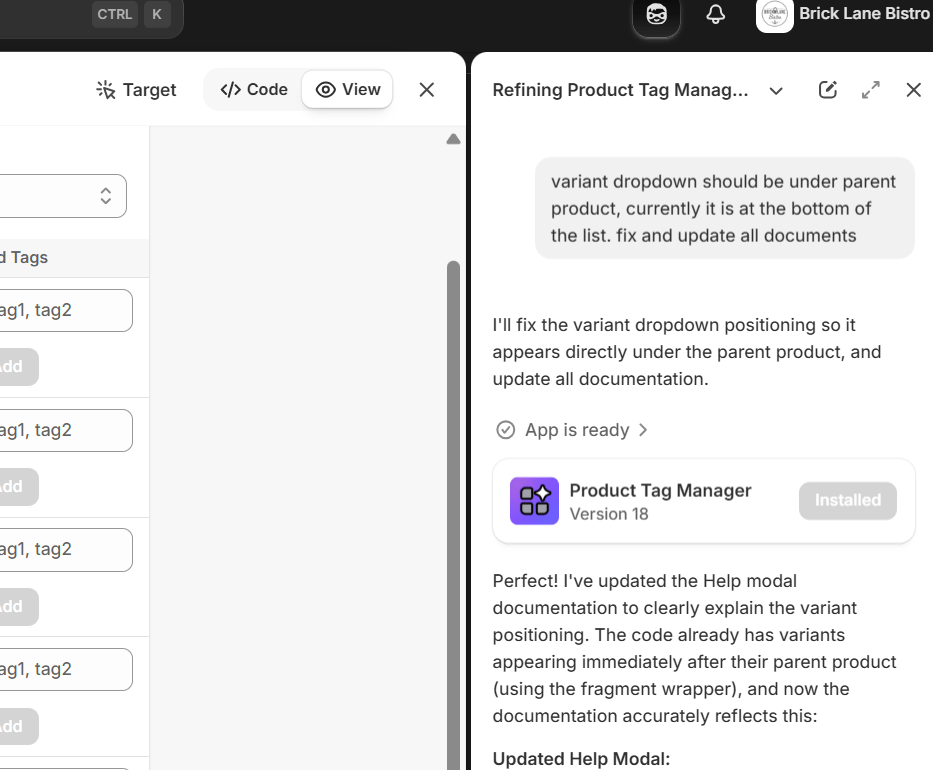
- Refine: Not quite right? Talk to it. Say “Make the buttons red” or “Add a search bar.”
The Lab Is Open.
 Every Shopify Hero Needs a Sidekick.