PREREQUISITES:
- Time: 5 minutes
- Access: Sidekick AI
- Plan: Grow / Advanced / Plus
Master Your Money Trail
Revenue leakage often happens in the “gray areas” of Shopify—orders that are authorized but not captured, pending payments that never clear, or disputes that go unanswered because a deadline was buried in an inbox. Most merchants lack a single, bird’s-eye view of these critical financial states.
The Solution: Sidekick It
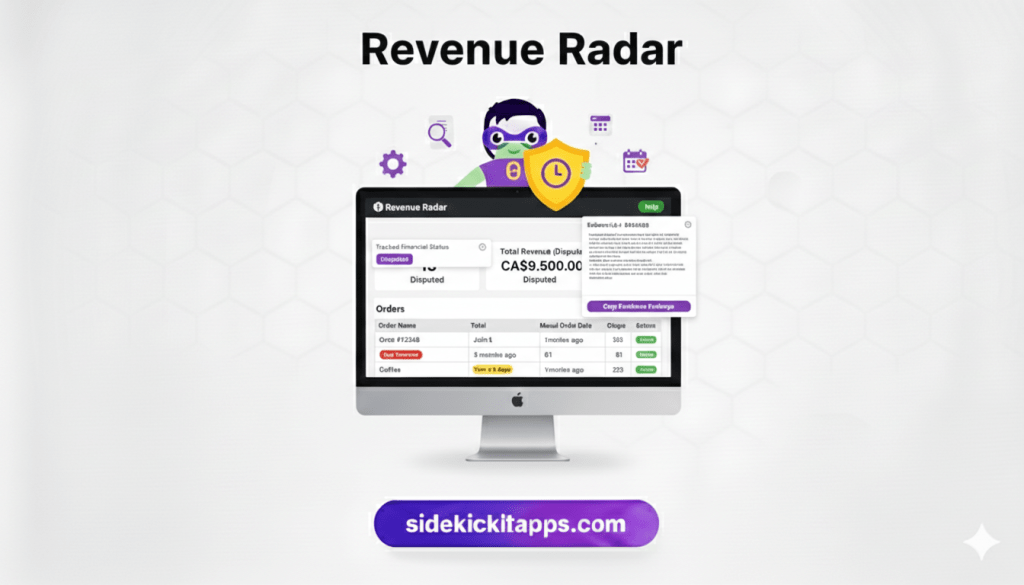
Revenue Radar is a high-performance monitoring tool that bridges the gap between your order list and your bank account. It doesn’t just track disputes; it allows you to toggle between 8 different financial statuses, set manual urgency deadlines, and generate “Evidence Packages” that you can download as files or copy to your clipboard for instant dispute resolution.
The Exact Prompt
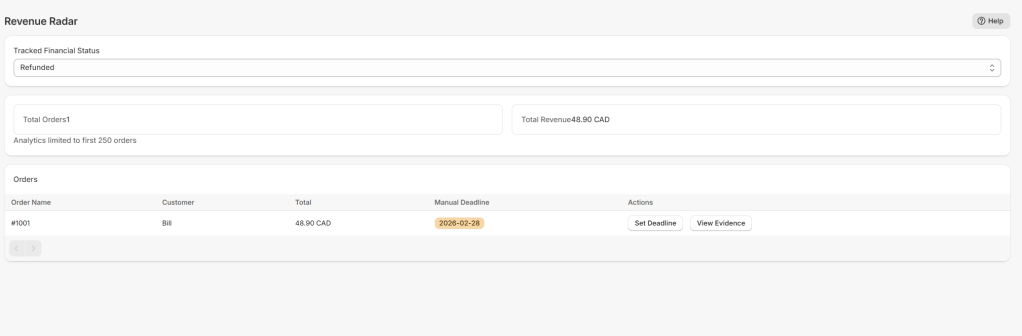
Create a Shopify admin app called 'Revenue Radar' that tracks and manages orders by financial status with deadline tracking and evidence collection.1. STATUS SELECTOR & ANALYTICS:- Dropdown with 7 financial statuses: Pending (default), Authorized, Partially Paid, Paid, Partially Refunded, Refunded, Voided- Auto-save selection to sidekick.chargeback_settings metafield and auto-refresh dashboard- Display 'Total Orders' and 'Total Revenue' metric cards for selected status (first 250 orders)- Show 'Showing first 250 orders' note when limit reached2. DYNAMIC ORDERS TABLE:- Columns: Clickable Order Name (opens shopify://admin/orders/{id} in new tab), Customer, Total, Manual Deadline (badge), Actions- Deadline badges: Red/Critical if ≤48h, Yellow/Warning if ≤7 days, show 'Overdue' if past- Actions: 'Set Deadline' (opens date picker modal) and 'View Evidence' (opens evidence modal)- Cursor-based pagination with 25 orders per page3. DEADLINE CALCULATION WITH TIMEZONE FIX:- Parse deadline date as end of day (23:59:59) in user's local timezone using: new Date(deadline + 'T23:59:59')- Calculate hours remaining from current time to end of deadline day- Display as hours if ≤48h or days if ≤7 days- This ensures "tomorrow" means the full day tomorrow in the user's timezone, not midnight UTC4. EVIDENCE MODAL WITH RISK DATA:- Query order details including: customer info, fulfillments (tracking numbers/URLs), risks (level, message), lineItems- Display formatted Evidence Package in read-only text area (15 rows) with sections: Order Info, Customer Details, Risk Assessment, Fulfillment Info, Line Items, Total- Download button with icon exports as 'Evidence-{OrderName}.txt'- IMPORTANT: Only query risks when 'View Evidence' is clicked (not on page load or installation)- Clear evidenceText state when modal closes via onHide handler5. MODALS & STATE MANAGEMENT:- All modal close buttons use onClick={() => modalRef.current?.hideOverlay()} (NOT commandFor/command)- Evidence modal has onHide={handleEvidenceModalClose} to clear state- Help modal with 5-step usage guide and limitations6. TECHNICAL SPECS:- Store deadlines in sidekick.dispute_deadlines metafield (JSON mapping order IDs to dates)- Store settings in sidekick.chargeback_settings metafield- Use shop.id as ownerId for metafields- Use s-date-picker (type='single'), s-text-area (readOnly), s-spinner for loading states
copy the text above for your Sidekick prompt
The Logic Flow: From Alert to Action
- Monitor: Select “Disputed” or “Authorized” from the top dropdown to instantly see where your capital is tied up.
- Track: When you identify a dispute, use the “Set Deadline” button. The Radar will now visually flag that order as it gets closer to the bank’s cutoff.
- Prepare: Click “View Evidence.” The app automatically pulls the tracking URL, delivery timestamp, fraud risk analysis, and line item details.
- Resolve: Copy the pre-formatted text for a quick reply, or Download the .txt file to keep as a permanent record for your accounting or legal team.
The Click-Through Advantage
The order names in the table are live links. If you see a high-risk “Disputed” order, click it to jump straight into the native Shopify Order page to verify customer notes before submitting your evidence.The 250 Limit
To keep the app lightning-fast, analytics are calculated based on the first 250 orders. If you are a high-volume store with more than 250 active disputes (ouch!), use the paginated table to work through the list.
Common Questions
How do I download the evidence?
Inside the “View Evidence” modal, there is a dedicated download button. It creates a .txt file on the fly, which is perfect for uploading as an attachment to support tickets.
Can I change the status names?
The app uses Shopify’s native financial statuses to ensure data accuracy, but you can use the Help modal to understand exactly what each status represents.
Where is the data stored?
All your settings and deadlines are stored in your store’s Metafields. This means the data is yours and stays with your store even if you reset the app.
The Sidekick Challenge: Switch your Revenue Radar to “Authorized.” Look for any orders older than 3 days. If the payment hasn’t been captured, you might be at risk of the authorization expiring. Capture those funds today!
 Every Shopify Hero Needs a Sidekick.