Shopify Flow is the central nervous system of your store. It handles inventory alerts, customer tagging, and fraud detection. But there’s one major problem: How do you know if a Flow stopped running? Usually, you only find out when a task fails—which is often too late.
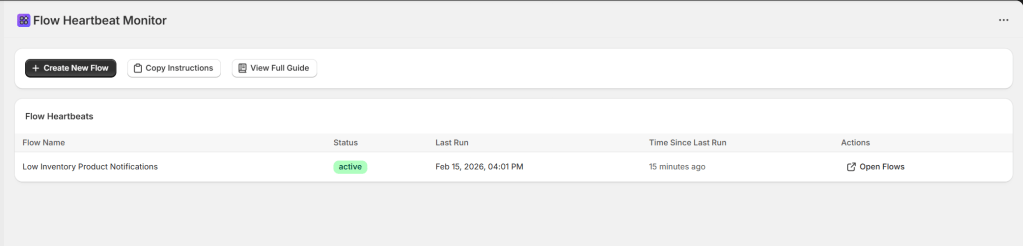
Today, we are “Sidekicking” your automation infrastructure. We’re building a Flow Heartbeat Monitor. This custom Sidekick app gives you a live dashboard of every Flow in your store, showing you exactly when they last “pulsed” and their current status.
- Before You Start:
- Ensure you have Shopify Sidekick enabled in your admin.
- You must have the Shopify Flow app installed.
- You should have “Manage Settings” permissions to edit Shop Metafields.
Step 1: Create the Monitoring App
First, we need to build the dashboard where you’ll view your Flows. Open Sidekick in your Shopify Admin, click the “+” button, select “Generate app,” and paste the prompt below.
Create a Flow Heartbeat Monitor app that: - Queries shop metafields with namespace 'flow_heartbeat' - Parses JSON values containing flowName, lastRun (ISO date), and status (active/warning/error) - Displays a table with columns: Flow Name, Status (color-coded badge), Last Run, Time Since Last Run, Actions - Sorts by most recent run first - Includes 'Create New Flow' button linking to shopify://admin/apps/flow - Includes 'Open Flows' buttons in each row linking to shopify://admin/apps/flow - Includes 'Copy Instructions' and 'View Full Guide' buttons with complete setup documentation - Shows empty state when no flows are configured
Highlight the prompt above and copy it to your clipboard to start your Sidekick build.
Step 2: Configure Your Flows
- Action: Update shop metafield
- Namespace:
flow_heartbeat - Key:
unique_flow_name(e.g.,inventory_check) - Type:
json
Each Flow needs a unique “Key.” If you use the same key for two different Flows, they will overwrite each other in the dashboard. Use lowercase and underscores only.
Paste this into the Value field of your Flow action. Customize the flowName to match your Flow.
{"flowName": "Order Confirmation Email", "lastRun": "{{ "now" | date: "%Y-%m-%dT%H:%M:%SZ" }}", "status": "active"}
Troubleshooting & Technical Details
| Issue | Likely Cause | Fix |
| App is Empty | No Flows have run yet. | Manually trigger a Flow to “Check In.” |
| Invalid Date | Liquid syntax error. | Ensure the date: filter has double quotes around the format string. |
| Missing Flows | Wrong Namespace. | Verify the namespace is exactly flow_heartbeat. |
| JSON Error | Smart/Curly Quotes. | Ensure you are using “Straight Quotes” " and not “Curly Quotes” “. |
💡 Pro-Tip: Don’t just put the heartbeat at the successful end of a Flow. If you have a complex Flow with multiple branches, add a heartbeat with
"status": "error"inside your error-handling branches to see failures instantly on your dashboard!
Not at all. The “Update shop metafield” action is a native Shopify function that takes milliseconds to execute. It happens at the very end of your workflow, so it won’t interfere with your actual business logic.
Since the “Heartbeat” is stored as a shop metafield, it will stay in your dashboard until you manually delete that metafield. You can do this in Settings > Custom Data > Shop Metafields.
This usually happens if the Liquid code in your Flow wasn’t copied exactly. Double-check that your value field contains {{ "now" | date: "%Y-%m-%dT%H:%M:%SZ" }}. This specific format is required for the dashboard to calculate the time difference.
Yes, but you’ll need to generate the Sidekick app in each store. Because the data is stored in “Shop Metafields,” the heartbeat data is private to each specific store.
🏷️ The Metafield Key Naming Guide
A “Key” is the unique ID for each Flow. If two Flows share a key, the dashboard will only show whichever one ran most recently. Follow these “Golden Rules” to keep your data clean.
The “Snake_Case” Standard
Always use lowercase letters, numbers, and underscores. Avoid spaces, hyphens, or emojis in the “Key” field.
- ✅ Good:
order_fraud_check - ❌ Bad:
Order Fraud Check!ororder-fraud-check
The Naming Formula
Use the [Category] _ [Action] _ [Market/Segment] formula:
| Category | Key Example | Best For |
| Orders | order_tagging_high_value | Fraud, VIP tagging, or fulfillment alerts. |
| Inventory | inv_threshold_alert_shoes | Low stock or backorder notifications. |
| Customers | cust_welcome_series_new | Marketing automation or tag-based triggers. |
| Clean-up | system_archive_old_orders | Behind-the-scenes data maintenance. |
💡 Quick Distinction:
- The Key: Is for the computer (e.g.,
vip_alert). It must be unique.- The flowName (in JSON): Is for you (e.g.,
VIP Customer SMS Alert). This can be as pretty and descriptive as you like!
Setting up a Heartbeat Monitor is the difference between reacting to a broken store and proactively managing your business. Once you’ve set up your first three critical Flows, you’ll wonder how you ever managed your automation without it.
 Every Shopify Hero Needs a Sidekick.