PREREQUISITES:
- 90s (Two-step prompt)
- Access: Sidekick AI
- Plan: Grow / Advanced / Plus
The Shipping Profile Maze
If you’ve ever spent hours wondering why a customer can’t see the “Expedited Shipping” option for a specific product, you know the headache. Shopify’s default interface makes it difficult to see which Delivery Profiles are assigned to which products at a glance. As you add special handling profiles (hazmat, oversized, dropshipped), it becomes a tangled mess of missing profiles and redundant rules.
The Solution: Sidekick It
This Sidekick-powered Product Shipping Options Manager cuts through the complexity. Instead of clicking through dozens of product pages, you can build a custom app that visualizes all your products and their assigned shipping profiles. This is your command center for pinpointing exactly why a shipping option isn’t showing up at checkout.
The Exact Prompt
Note: This recipe works best in two stages. Follow the order below:
Step 1: The Foundation
I want to create an app that checks various shipping options across all of my products and allows me to see very quickly what products have what shipping options available.
Highlight the prompt above and copy it to your clipboard to start your Sidekick build.
Step 2: The Refinement (Paste after Sidekick responds to Step 1)
Request these enhancements: - View delivery profile details in a modal.- Add Help button and Share button.- Add expandable rows for variants.- Suppress expandable rows for products with only default variants.- Add shipping methods and conditions to the delivery profile details.
Highlight the prompt above and copy it to your clipboard to refine your Sidekick build.
Key Features of Your New Shipping Sidekick App
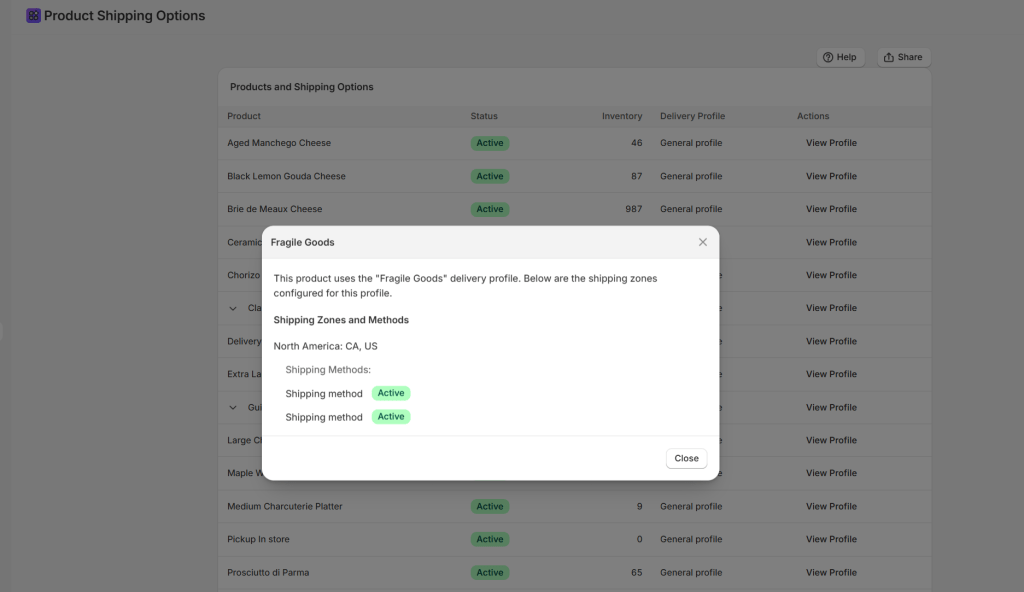
- Comprehensive Product View: See all physical products in one scrollable, paginated table.
- Delivery Profile Assignments: Instantly identify which profile (e.g., “Heavy Goods,” “Dropship Partner”) each item belongs to.
- Variant-Level Detail: Expand products to see if specific variants (like your “Oversized” version) have the correct shipping rules.
- Detailed Profile Modal: Click any profile name to see Shipping Zones, Countries, and specific Methods (Standard, Express, etc.) along with their price/weight conditions.
- Shareable Instructions: Use the built-in “Share” button to send the logic to your logistics team.
⚠️ Note: This specific app is designed for visualization and auditing. It pulls data from the Delivery Profile API. While it provides incredible clarity, always perform a final test at your storefront checkout after making significant changes to your Shipping and Delivery settings.
Common Questions
What is a “Delivery Profile”?
It is a set of shipping rules for specific products and locations. Shopify uses these to determine which rates to show at checkout based on what’s in the cart.
Can this app change the assignments?
This specific recipe is a “Manager View” for auditing. To move products, you can follow up with Sidekick and ask: “Now, add a feature to move selected products to the [Profile Name] profile.”
Is this useful for small stores?
Even with a “General” profile, this app is a game-changer for troubleshooting why a specific country or weight bracket isn’t triggering the correct shipping rate.
The Sidekick Challenge: Have you ever had a “Shipping Fail” where a customer was charged $0 for a heavy item? Drop a comment below and tell us how this audit tool changed your workflow!
 Every Shopify Hero Needs a Sidekick.