Category: Shopify Flow

  • Recipe: The “High-Risk Fraud” Auto-Canceler

    Recipe: The “High-Risk Fraud” Auto-Canceler

    PREREQUISITES:

    • Time: 120s
    • Access: Sidekick AI, Flow
    • Impact: High

    Stop chargebacks in their tracks by automatically canceling high-risk orders while you sleep

    Shopify flags fraudulent orders, but it doesn’t automatically stop them from moving through your fulfillment pipeline. If you use external shipping software, a high-risk order can easily slip through the cracks and be shipped before you have a chance to review it.

    The Sidekick Solution

    We are going to use Shopify Flow to build this automation. Instead of dragging and dropping blocks manually, we are going to give Sidekick an exact blueprint so it can generate the entire workflow for us instantly.

    Phase 1: The Setup Requirements

    While Shopify Flow has basic native email capabilities, sending formatted, reliable customer-facing emails through Flow requires a dedicated tool.

    Before we prompt Sidekick to build the logic, go to the Shopify App Store and install the FlowMail connector app. The best part? It is built directly by Shopify and is 100% free to use. It integrates directly into Shopify Flow as an “Action,” allowing you to send professional cancellation notices without hitting native email limitations or adding another monthly subscription to your bill.


    Phase 2: The Exact Prompt

    Create a Shopify Flow workflow that automatically protects against high-risk fraudulent orders with these exact specifications:
    TRIGGER: Order risk analyzed
    CONDITION: Check if orderRiskLevel == 'HIGH'
    ACTION 1 - Cancel order:
    Order ID: {{ order.id }}
    Reason: FRAUD
    Notify customer: false (we send custom email instead)
    Refund: true
    Restock: true
    Staff note: "Automatically cancelled by Flow due to high fraud risk"
    ACTION 2 - Send customer email via FlowMail:
    Customer ID: {{ order.customer.id }}
    Subject: "Order {{ order.name }} - Security Review Required"
    Reply-to: [YOUR STORE EMAIL]
    Email body:
    "Dear {{ order.customer.firstName }},
    We regret to inform you that your order {{ order.name }} has been cancelled due to security concerns identified during our fraud prevention review.
    For your protection and ours, we take security very seriously. If you believe this was done in error, please contact our customer service team.
    Your payment has been fully refunded and will appear in your account within 5-10 business days.
    Thank you for your understanding.
    Best regards,
    [YOUR STORE NAME]"
    Workflow name: "Cancel high risk orders automatically"
    Note: Requires FlowMail connector to be installed for the email action.

    copy the above prompt

    Phase 3: Review & Customize

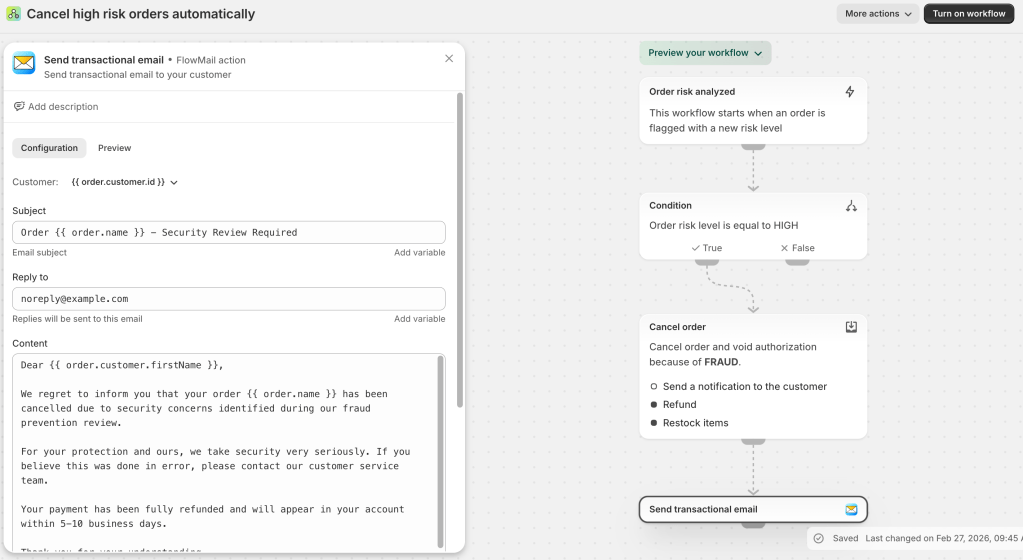
    Once Sidekick generates the workflow, it will open in your Shopify Flow editor. Before turning it on, you must make a few quick updates:

    • Update Placeholders: Click into the FlowMail “Send Email” action block and replace [YOUR STORE EMAIL] and [YOUR STORE NAME] with your actual store details.
    • Review the Logic: Double-check that the Condition is set to target exactly “High” risk (and not medium or low).
    • Check the Restock: Ensure the “Cancel order” action has the “Restock items” box checked so your inventory stays accurate.

    Phase 4: Testing & Activation

    Never activate an automation for live traffic without testing it first!

    • Turn it On: Click Turn on workflow in the top right corner of the Flow editor.
    • The Test: Shopify has a built-in “Bogus Gateway” for testing payments. If you use it to place a test order with a specific “fail” credit card number (which Shopify documents in their help center), it will intentionally flag as high risk.
    • Verify: Check your Flow’s “Run history.” You should see the workflow trigger, follow the “High Risk” path, cancel the order, and trigger the FlowMail notification.

    FAQ & Troubleshooting: Let Sidekick Fix It

    If your workflow doesn’t behave exactly as expected, Shopify Flow will usually give you a specific error message in the “Run history” tab. Here is how to use Sidekick to debug it.

    My FlowMail action failed to send!

    The Problem: Usually, this means the Liquid variables (like the customer’s email address) weren’t formatted correctly in the FlowMail action block, or the app wasn’t installed properly. Ask Sidekick: “I am using the FlowMail app in Shopify Flow. What is the exact variable I need to type into the ‘To’ field to ensure the email goes to the customer who placed the order?”

    The order was canceled, but the items weren’t restocked.

    The Problem: If you have multiple fulfillment locations, the “Cancel order” action might not know where to put the inventory back. Ask Sidekick: “My Shopify Flow is canceling high-risk orders, but it is not restocking the inventory. Can you walk me through how to configure the ‘Cancel order’ action in Flow to handle multi-location restocking?”

    It’s canceling Medium risk orders too!

    The Problem: Your condition logic might be set to “Contains” instead of “Equal to”, or you might have accidentally targeted the wrong risk criteria. Ask Sidekick: “My Shopify Flow is triggering on the wrong risk levels. Can you confirm the exact path in the Flow condition builder to target the final, overall ‘High’ risk recommendation, rather than individual risk flags?”

    What other repetitive admin tasks are eating up your week? Drop your biggest operational headaches in the comments below, and let’s see if we can build a Sidekick recipe to automate them.

  • Monitor Shopify Flow Status with Heartbeat

    Monitor Shopify Flow Status with Heartbeat

    Shopify Flow is the central nervous system of your store. It handles inventory alerts, customer tagging, and fraud detection. But there’s one major problem: How do you know if a Flow stopped running? Usually, you only find out when a task fails—which is often too late.

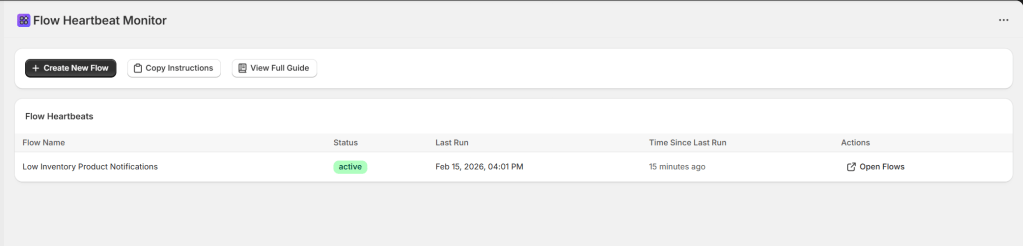
    Today, we are “Sidekicking” your automation infrastructure. We’re building a Flow Heartbeat Monitor. This custom Sidekick app gives you a live dashboard of every Flow in your store, showing you exactly when they last “pulsed” and their current status.

    • Before You Start:
    • Ensure you have Shopify Sidekick enabled in your admin.
    • You must have the Shopify Flow app installed.
    • You should have “Manage Settings” permissions to edit Shop Metafields.

    Step 1: Create the Monitoring App

    First, we need to build the dashboard where you’ll view your Flows. Open Sidekick in your Shopify Admin, click the “+” button, select “Generate app,” and paste the prompt below.

    Create a Flow Heartbeat Monitor app that:
    - Queries shop metafields with namespace 'flow_heartbeat'
    - Parses JSON values containing flowName, lastRun (ISO date), and status (active/warning/error)
    - Displays a table with columns: Flow Name, Status (color-coded badge), Last Run, Time Since Last Run, Actions
    - Sorts by most recent run first
    - Includes 'Create New Flow' button linking to shopify://admin/apps/flow
    - Includes 'Open Flows' buttons in each row linking to shopify://admin/apps/flow
    - Includes 'Copy Instructions' and 'View Full Guide' buttons with complete setup documentation
    - Shows empty state when no flows are configured

    Highlight the prompt above and copy it to your clipboard to start your Sidekick build.

    Flow Heartbeat Monitor Dashboard

    Step 2: Configure Your Flows

    • Action: Update shop metafield
    • Namespace: flow_heartbeat
    • Key: unique_flow_name (e.g., inventory_check)
    • Type: json

    Each Flow needs a unique “Key.” If you use the same key for two different Flows, they will overwrite each other in the dashboard. Use lowercase and underscores only.

    Paste this into the Value field of your Flow action. Customize the flowName to match your Flow.

    {"flowName": "Order Confirmation Email", "lastRun": "{{ "now" | date: "%Y-%m-%dT%H:%M:%SZ" }}", "status": "active"}

    Troubleshooting & Technical Details

    IssueLikely CauseFix
    App is EmptyNo Flows have run yet.Manually trigger a Flow to “Check In.”
    Invalid DateLiquid syntax error.Ensure the date: filter has double quotes around the format string.
    Missing FlowsWrong Namespace.Verify the namespace is exactly flow_heartbeat.
    JSON ErrorSmart/Curly Quotes.Ensure you are using “Straight Quotes” " and not “Curly Quotes” .

    💡 Pro-Tip: Don’t just put the heartbeat at the successful end of a Flow. If you have a complex Flow with multiple branches, add a heartbeat with "status": "error" inside your error-handling branches to see failures instantly on your dashboard!

    Not at all. The “Update shop metafield” action is a native Shopify function that takes milliseconds to execute. It happens at the very end of your workflow, so it won’t interfere with your actual business logic.

    Since the “Heartbeat” is stored as a shop metafield, it will stay in your dashboard until you manually delete that metafield. You can do this in Settings > Custom Data > Shop Metafields.

    This usually happens if the Liquid code in your Flow wasn’t copied exactly. Double-check that your value field contains {{ "now" | date: "%Y-%m-%dT%H:%M:%SZ" }}. This specific format is required for the dashboard to calculate the time difference.

    Yes, but you’ll need to generate the Sidekick app in each store. Because the data is stored in “Shop Metafields,” the heartbeat data is private to each specific store.

    🏷️ The Metafield Key Naming Guide

    A “Key” is the unique ID for each Flow. If two Flows share a key, the dashboard will only show whichever one ran most recently. Follow these “Golden Rules” to keep your data clean.

    The “Snake_Case” Standard

    Always use lowercase letters, numbers, and underscores. Avoid spaces, hyphens, or emojis in the “Key” field.

    • Good: order_fraud_check
    • Bad: Order Fraud Check! or order-fraud-check

    The Naming Formula

    Use the [Category] _ [Action] _ [Market/Segment] formula:

    CategoryKey ExampleBest For
    Ordersorder_tagging_high_valueFraud, VIP tagging, or fulfillment alerts.
    Inventoryinv_threshold_alert_shoesLow stock or backorder notifications.
    Customerscust_welcome_series_newMarketing automation or tag-based triggers.
    Clean-upsystem_archive_old_ordersBehind-the-scenes data maintenance.

    💡 Quick Distinction:

    • The Key: Is for the computer (e.g., vip_alert). It must be unique.
    • The flowName (in JSON): Is for you (e.g., VIP Customer SMS Alert). This can be as pretty and descriptive as you like!

    Setting up a Heartbeat Monitor is the difference between reacting to a broken store and proactively managing your business. Once you’ve set up your first three critical Flows, you’ll wonder how you ever managed your automation without it.