Category: check out

  • Smart Discount Protector: Stop Your Profit Margins from Eroding

    Smart Discount Protector: Stop Your Profit Margins from Eroding

    PREREQUISITES:

    • Time: 60s
    • Access: Sidekick AI
    • Plan: Grow / Advanced / Plus

    The “Discount Stacking” Trap

    It starts with a simple “Welcome” code. Then you launch a “Buy One Get One” automatic discount for a holiday. Before you know it, a customer has used both, stacked a “Free Shipping” code on top, and you’ve just sold a product for less than it cost you to manufacture. Discount stacking is a silent margin killer. If you aren’t monitoring how your discounts collide, you aren’t just giving away profit—you’re paying customers to take your inventory.

    The Solution: Sidekick It

    To “Sidekick It” is to stop guessing and start auditing. Today, we’re building the Smart Discount Protector (aka the Discount Stacking Shield). This app provides a real-time command center that flags every order where total discounts exceed your safe thresholds. By identifying the “Most Stacked Codes” and calculating “Revenue at Risk,” you can fix your discount logic before the next big sale.

    PREREQUISITES

    • Shopify Plan: Must be on a plan with Sidekick access (Grow or higher).
    • Threshold Knowledge: Determine your “Warning” (e.g., 30%) and “Critical” (e.g., 40%) discount limits based on your COGS.
    • Sidekick Access: Ensure the Sidekick icon is active in your admin sidebar.

    The Exact Prompt

    Build a custom Shopify admin app called "Smart Discount Protector" (subtitle: "Discount Stacking Shield") that monitors and flags orders with excessive discount stacking.
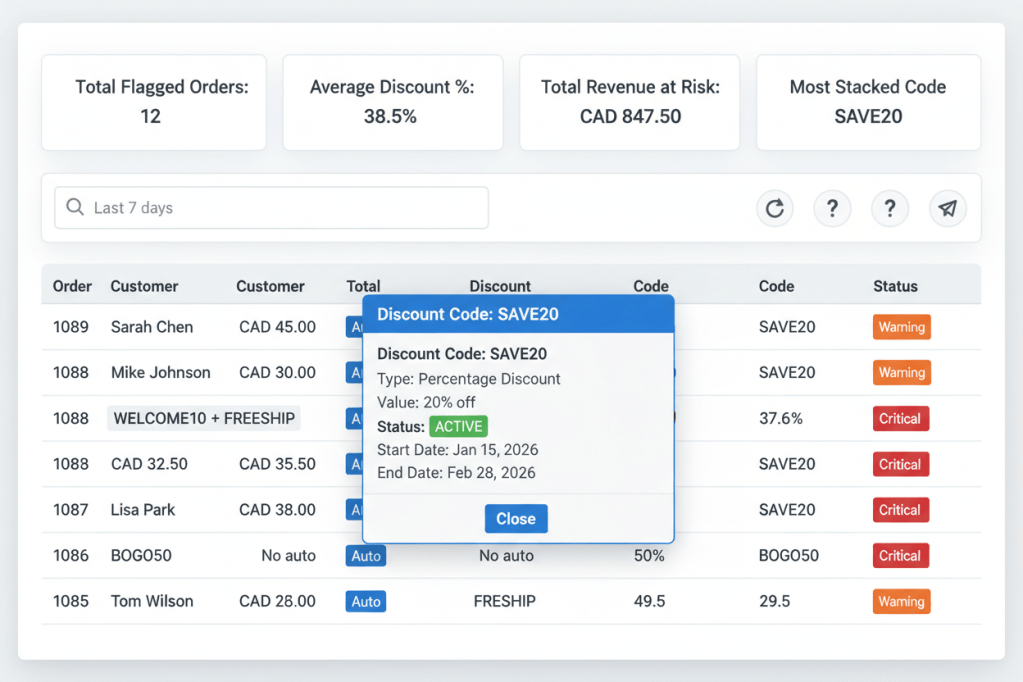
    Main Dashboard: > - Show 4 analytics cards: Total flagged orders, Average discount %, Total revenue at risk, and Most stacked discount code.
    Display a table of flagged orders including: Order number (clickable link), Customer, Total, Discount Amount, Discount %, and Status badge (Warning/Critical).
    Include "Search" and "Time Filters" (24h, 7d, 30d).
    Logic & Storage: > - Calculate Discount % as: (total discount / (current total + total discount)) × 100.
    Flag orders above configurable thresholds (Default: 30% Warning / 40% Critical).
    Store thresholds in shop metafields (namespace: 'sidekick', key: 'discount_protector_settings').
    Automatically filter out refunded/cancelled orders to prevent false positives.
    Features: > - Clickable discount codes that open a modal with full details (type, value, start/end dates).
    Color-coded badges: Orange (Warning), Red (Critical), Blue (Automatic Discount indicator).
    Pagination and Refresh functionality.

    Highlight the text in the box above and copy it to your clipboard to start your build.
    How the Shield Protects You

    • Continuous Monitoring: The app scans your completed orders across the selected time period.
    • Stacking Detection: It doesn’t just look at one code; it sums up Manual Codes + Automatic Discounts to find the true discount percentage.
    • Visual Alerting: Orders are instantly color-coded. A “Red” status means the order likely hit your profit floor.
    • Actionable Data: By clicking on a flagged code, you can see if that specific promotion is the culprit, allowing you to disable or modify the rule in Shopify immediately.

    Technical Note: Post-Purchase Analysis
    This app is a monitoring tool, not a checkout blocker. Because Shopify’s checkout is highly secure, this app analyzes orders after they are placed. Use the data gathered here to adjust your “Discount Combination” settings in the Shopify Admin to prevent future stacking.

    Caution: Set Your Floor
    “Critical” thresholds should represent your “Breakeven” point. If your average margin is 45%, a 40% discount is critical because after credit card fees and shipping, you are likely losing money.

    Common Questions from the Lab

    Does this stop the customer from checking out?

    No. It identifies problematic orders once they are completed. If an order is truly disastrous, you can use the clickable order link to jump into the admin and cancel/refund it before fulfillment.

    Why does it ignore refunded orders?

    Refunded orders often show “100% discount” in data exports because the revenue is zeroed out. The app filters these out so your analytics remain accurate to actual sales.

    What is “Revenue at Risk”?

    This is the total dollar amount you have “lost” to discounts on flagged orders. It helps you quantify exactly how much stacking is costing your business each month.

    The Sidekick Challenge: Run this app for the “Last 30 Days.” What is your Most Stacked Code? If it’s a “Welcome” code stacking with your main sale, it might be time to update your discount combination settings!
  • Quantity Discount Manager: Tiered Pricing Made Easy

    Quantity Discount Manager: Tiered Pricing Made Easy

    PREREQUISITES:

    • Time: 90s
    • Access: Sidekick AI
    • Impact: High

    The “Single Item” Ceiling

    High-volume stores know that the secret to scaling isn’t just getting more customers—it’s getting current customers to buy more. Encouraging “Stock Up and Save” behavior is difficult if you’re manually managing complex discount codes or using apps that clutter your product pages. If you aren’t rewarding bulk purchases, you’re missing out on a massive opportunity to lower your shipping-cost-to-revenue ratio and skyrocket your AOV.

    The Solution: Sidekick It

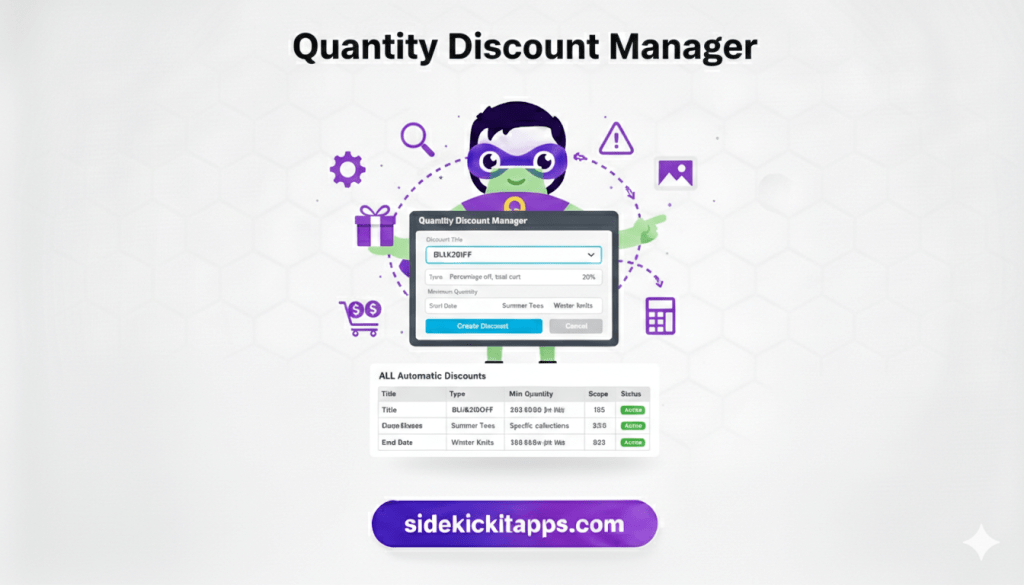
    Today, we are building the Quantity Discount Manager. This app gives you a dedicated command center to create and manage automatic tiered pricing. Whether you want to offer “$10 off when you buy 3” or “20% off the whole cart at a 5-item threshold,” this tool handles the logic. It allows you to target specific products, collections, or the entire store, all while syncing directly with Shopify’s native Automatic Discount engine.

    The Exact Prompt

    Create a custom Shopify admin app called "Quantity Discount Manager" with the following features:
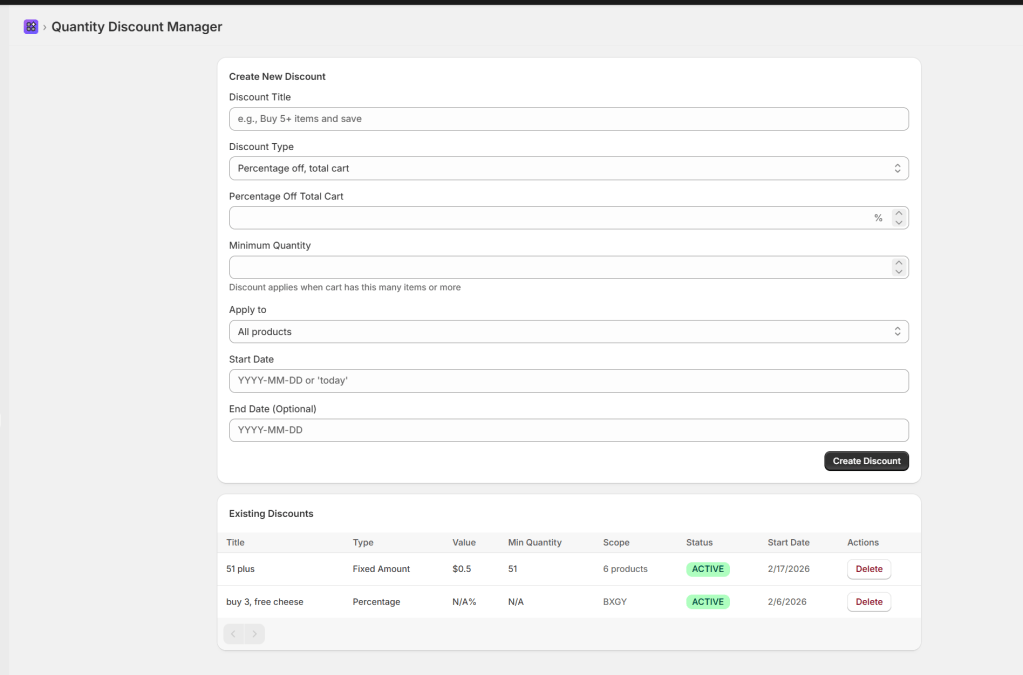
    1. CREATE DISCOUNTS:
    Fields for Discount Title, Type (4 options: % off cart, % off item, $ off cart, $ off item), Value, and Min Quantity.
    "Apply to" scope: All products, Specific products (searchable picker), or Specific collections (searchable picker).
    Start Date (supports "today") and optional End Date.
    2. DISCOUNT LIST TABLE:
    Display ALL automatic discounts (Basic, BXGY, Free Shipping) in a paginated table (25 per page).
    Columns: Title, Type, Value, Min Quantity, Scope, Status, Start Date, and Actions (Delete).
    3. TECHNICAL & VALIDATION:
    Use discountAutomaticBasicCreate mutation; send minimum quantity as a STRING.
    Use automaticDiscountNodes query to fetch all types.
    Required fields: Title, Value > 0, Min Quantity >= 1.
    Percentage cap at 100%; End date validation.
    Include Success/Error banners and loading states on all buttons.

    Triple-click the box above to copy the magic.

    How It Works

    • Rule Definition: You set a “Trigger” (e.g., 3 items) and a “Reward” (e.g., 15% off, or $1 off per item).
    • Targeting: You choose whether this applies to your entire catalog or a specific “Bulk Buy” collection.
    • Native Integration: The app uses Shopify’s discountAutomaticBasicCreate API. This means the discount is applied automatically at checkout without the customer needing to type a code.
    • Centralized Audit: The dashboard lets you see your new quantity rules alongside your existing Shopify “Buy X Get Y” or Free Shipping rules for a full bird’s-eye view.

    Technical Note:

    Unique Titles Shopify requires every Automatic Discount to have a unique title. If you try to name two different rules “Bulk Savings,” the API will return an error. Be descriptive: e.g., “T-Shirt Bundle – 3 Items.”

    Caution: Stacking Logic

    Shopify typically only applies one automatic discount at a time (the best deal for the customer). If you have a site-wide “10% off everything” and a “Buy 3 get 20% off,” Shopify will pick the winner. Ensure your quantity discounts are enticing enough to overrule smaller site-wide promos. The exception being if you have set up a free gift rule using the GWP Automator recipe on this site. That will still stack for you!

    Troubleshooting & Best Practices

    • Date Formatting: If you aren’t using the “today” shortcut, ensure your date is in YYYY-MM-DD format to satisfy the Shopify API.
    • The “Total Cart” Rule: Currently, the minimum quantity checks the total number of qualifying items in the cart. If you target a “Summer Collection” with a 3-item minimum, any combination of 3 items from that collection will trigger the deal.
    • Editing Rules: To prevent data conflicts, this app is “Create/Delete” only. If you need to change a 20% discount to 25%, simply delete the old rule and recreate it.
    • Zero-Value Errors: Always ensure your discount value is greater than 0. The app will block “0%” or “$0” entries to prevent checkout glitches.

    Common Questions

    Can I offer “Buy 2 get 1 free” with this app?

    This specific manager handles Basic discounts (percentage or amount off). While it displays your “Buy X Get Y” rules in the table for reference, you should use the native Shopify admin to create BXGY rules, then use this app to manage your tiered pricing.

    Does the customer see the discount on the product page?

    Because these are “Automatic Discounts,” they are natively calculated in the cart and at checkout. To show them on the product page, we recommend adding a “Bulk Savings” section to your product description or a theme announcement bar.

    Can I limit this to just one specific variant?

    Yes! When using the “Specific Products” scope, the searchable picker allows you to select the products that qualify for the quantity trigger.

    The Sidekick Challenge: Identify your “slowest” moving collection. Create a “Buy 4, Get 20% Off” rule for that collection specifically and watch your inventory turn over faster this month!

  • The GWP Automator: Professional Gift-With-Purchase Management

    The GWP Automator: Professional Gift-With-Purchase Management

    PREREQUISITES:

    • Time: 5–10 mins (including theme setup)
    • Access: Shopify Sidekick AI & Theme Editor
    • Plan: Grow / Advanced / Plus

    The “AOV” Ceiling

    Increasing your Average Order Value (AOV) is the fastest way to scale, but manually nudging customers to “add one more thing” is a constant battle. Gift-With-Purchase (GWP) promotions are a proven psychological trigger, yet they are notoriously difficult to manage. Most merchants end up with a mess of discount codes that don’t stack or bloated apps that slow down the site. If you can’t easily toggle rules or track which gifts are active, you’re missing out on your most powerful conversion lever.

    The Solution: Sidekick It

    Today, we’re using Shopify Sidekick to build the GWP Automator. This is a comprehensive rule management system that gives small merchants enterprise-level promotional power. It provides an intuitive interface to manage multiple tiers (e.g., Free Socks at $50, Free Tee at $150) and includes a built-in Theme Implementation Guide that generates the specific Liquid and AJAX code needed to make the magic happen on your storefront—zero monthly fees required.

    PREREQUISITES

    Before you begin, ensure your lab is ready:

    • Shopify Plan: You must be on the Grow, Advanced, or Plus plan to access Sidekick App Generation.
    • Sidekick Access: Ensure the Sidekick icon is visible in your Shopify Admin (Desktop only).
    • Theme Access: You’ll need access to your Shopify theme code (Online Store > Themes > Actions > Edit Code).
    • A “Gift” Product: A specific product (or variant) you intend to give as a gift, configured correctly (see Caution below).

    The Exact Prompt

    GWP Automator - Recreation Prompt
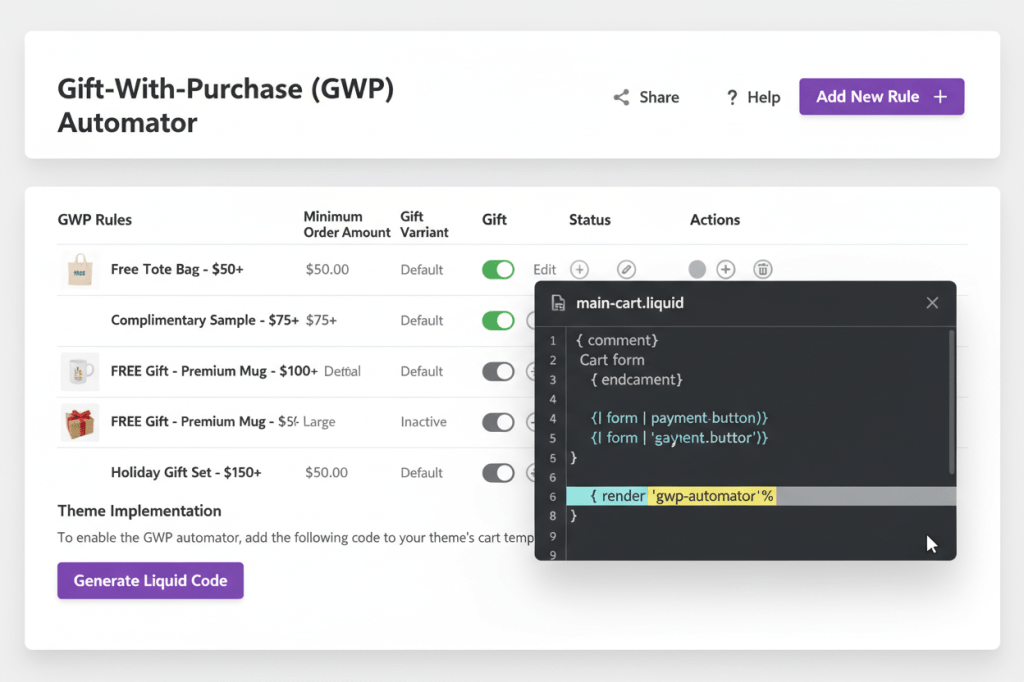
    Build a custom Shopify admin app called 'Gift-With-Purchase (GWP) Automator' that manages free gift promotional rules.
    Main Dashboard:
    Display all GWP rules in a sortable table
    Show: Rule Name, Threshold, Gift Product, Gift Variant, Status, Actions
    Share, Help, and Add New Rule buttons in header
    Edit and Delete actions for each rule
    Toggle switches for active/inactive status
    Create/Edit Rule Form:
    Rule name text field
    Threshold amount (currency input)
    Product search with thumbnail previews
    Variant selector (if product has multiple variants)
    Active/Inactive toggle
    Save and Cancel buttons
    Data Storage:
    Store rules in shop metafields (namespace: 'sidekick', key: 'gwp_rules')
    Each rule: id, name, threshold, giftVariantId, giftProductTitle, giftVariantTitle, giftProductImage, active, createdAt
    Theme Implementation Section:
    Appears below rules table when rules exist
    'Generate Liquid Code' button
    Opens modal with:
    Complete, production-ready Liquid code snippet
    Code that fetches GWP rules from metafields
    Automatic cart checking and gift addition/removal logic
    AJAX-based cart updates
    Gift marking with '_gwp_gift' property
    Comprehensive implementation instructions for ALL cart types (regular cart page, slide-out drawer, ajax cart)
    How to identify which cart type your theme uses
    Best practices for each cart style
    Important notes section with troubleshooting tips
    Generated Liquid Code Features:
    Reads shop.metafields.sidekick.gwp_rules
    Parses JSON rules
    Checks cart.total_price against thresholds
    Finds highest applicable rule
    Uses fetch API to add/remove gifts from cart
    Handles edge cases (gift already in cart, multiple rules)
    Automatically reloads cart after changes
    Features:
    Search products with GraphQL (250 results max)
    Fetch variants for selected products (including correct default variant IDs via GraphQL)
    Form validation (threshold greater than 0, product required)
    Success/error banners
    Empty state when no rules exist
    Sort rules by threshold (lowest to highest)
    Help Documentation:
    What is Gift-With-Purchase
    How to create a rule
    Selecting gift variants
    Best practices
    Setting up free gift products (pricing at $0, clear titles, inventory tracking, visibility management)
    Limitations
    Implementation options (Theme Integration as #1 recommended, Shopify Functions, Third-party apps)
    Using the Theme Implementation Guide section
    Next steps
    Share Button:
    Share modal with app overview
    Key features list (9 features)
    Who should use this app
    This exact recreation prompt
    Getting started steps
    Tips for success
    Technical Requirements:
    All modals have working close buttons with onClick handlers
    CRITICAL: When handling products with only default variants, fetch the actual variant ID via GraphQL query instead of string replacement
    Use proper error handling for all GraphQL queries
    Implement timestamp-based reload loop prevention in generated Liquid code

    Highlight the text in the box above and copy it to your clipboard to start your build.

    Key Features of Your New App

    • Unlimited Multi-Tier Rules: Set different gifts for different spend levels; the app automatically finds the highest applicable gift for the customer.
    • Smart Logic Handling: The generated code includes “Removal Logic”—if a customer removes items and drops below the threshold, the gift is automatically pulled from the cart.
    • Variant-Specific Gifting: Don’t just give away a “Shirt”—specify the exact SKU, size, and color to keep your inventory perfectly synced.
    • Persistent Storage: Rules are saved in your Shopify Metafields, meaning the data stays with your store even if you update your theme.Detail the features (e.g., “Audits your catalog,” “Instant Updates”).

    The GWP Logic Flow: How the Magic Happens

    1. Customer Action: A customer adds an item to their cart or updates a quantity.
    2. Theme Interception: Your theme’s AJAX cart update (often a JavaScript event) is triggered. The sidekick-gwp.liquid snippet, included in your theme, listens for this event.
    3. Rule Retrieval: The snippet reads your active GWP rules directly from the Shop Metafields (sidekick.gwp_rules).
    4. Cart Evaluation: The script calculates the current cart.total_price.
    5. Decision Point: It compares the cart.total_price against the thresholds of your active GWP rules.
      • If Threshold Met: The script checks if the highest applicable gift is already in the cart. If not, it uses the Shopify Fetch API (/cart/add.js) to add the free SKU.
      • If Threshold NOT Met: The script scans the cart for any items previously added by the GWP Automator (_gwp_gift property). If found, it uses the Fetch API (/cart/change.js) to remove them.
    6. UI Refresh: After the gift is added or removed, the script triggers a cart refresh, instantly updating the cart drawer or page to reflect the change.

    Technical Note: Theme Integration

    While Sidekick builds the manager, you must place the generated code into your theme to see it on the storefront. Use the “Generate Liquid Code” button inside your new app. If you use a Slide-out Drawer (like in the Dawn or Impulse themes), ensure you place the {% render 'sidekick-gwp' %} tag in your cart drawer snippet, not just the main cart page.

    Test in Preview: Add items to your cart in the duplicate theme preview to ensure the AJAX “Add to Cart” triggers correctly and the gift appears/disappears as expected, without refreshing the page. This prompt uses the [Mutation Name] to update live store data.”

    Caution: Modify with Care

    Before adding the generated code to your theme, always:

    Duplicate your theme: Go to Online Store > Themes > Actions > Duplicate. Never edit your live theme directly.

    Create a $0 Product: Set your gift product’s price to $0.00 and ensure “Track quantity” is enabled in its inventory settings.

    Troubleshooting Common Issues

    Gift isn’t appearing/disappearing instantly (or at all):

    Check Snippet Placement: Ensure the {% render 'sidekick-gwp' %} tag is in the correct theme file (e.g., cart-template.liquid, main-cart-footer.liquid, and your cart drawer file if applicable).

    AJAX Cart Event: Some highly customized themes might not trigger standard cart.update events. You may need to ask a developer to identify the specific JavaScript event your theme uses and modify the generated code to listen for it.

    Cache: Clear your browser cache or test in an incognito window.

    I’m getting a checkout error when the gift is added:

    Gift Product Status: Is your gift product’s status set to “Active” (not “Draft”)?

    Inventory Tracking: Is “Track quantity” enabled for the gift product, and is there available stock?

    Variant ID: Double-check that the Variant ID selected in your GWP rule exactly matches the active gift product variant in your Shopify admin.

    The gift appears but isn’t free:

    Gift Product Price: Is the gift product’s price (and its selected variant’s price) set to $0.00 in your Shopify product settings?

    Discount Stacking: If you have other “automatic discounts” active, they might conflict. Ensure your Shopify discount settings allow automatic discounts to combine, or pause other automatic discounts while testing.

    The app is working, but my site speed is slow

    This app uses Shopify’s native GraphQL API for product search and Metafields for storage, making it very performant. Site speed issues are unlikely to be caused by this app specifically but check for other heavy apps or unoptimized theme assets.

    Common Questions from the Lab

    How do I hide the $0 gift from my main shop?

    You don’t need to delete it or keep it as a draft. Simply leave it out of your “All Products” collection and navigation menus. The GWP Automator will find it via its specific Variant ID.

    Can customers just buy the $0 gift directly?

    If they find the direct link, yes. To prevent this, most Lab members add a note to the product description: “Promotional item: only available with qualifying purchases.”

    The gift appears but isn’t free:

    Gift Product Price: Is the gift product’s price (and its selected variant’s price) set to $0.00 in your Shopify product settings?

    Discount Stacking: If you have other “automatic discounts” active, they might conflict. Ensure your Shopify discount settings allow automatic discounts to combine, or pause other automatic discounts while testing.

    What if I have multiple GWP rules active? Which one fires?

    The generated Liquid code prioritizes the highest applicable threshold. If a customer qualifies for a $50 gift and a $100 gift, they will receive the $100 gift.

    The Sidekick Challenge: Check your current Average Order Value (AOV). Set your first GWP rule threshold at 15% higher than that average. Post in the comments if this nudge helped increase your weekly revenue!