Category: advanced tools

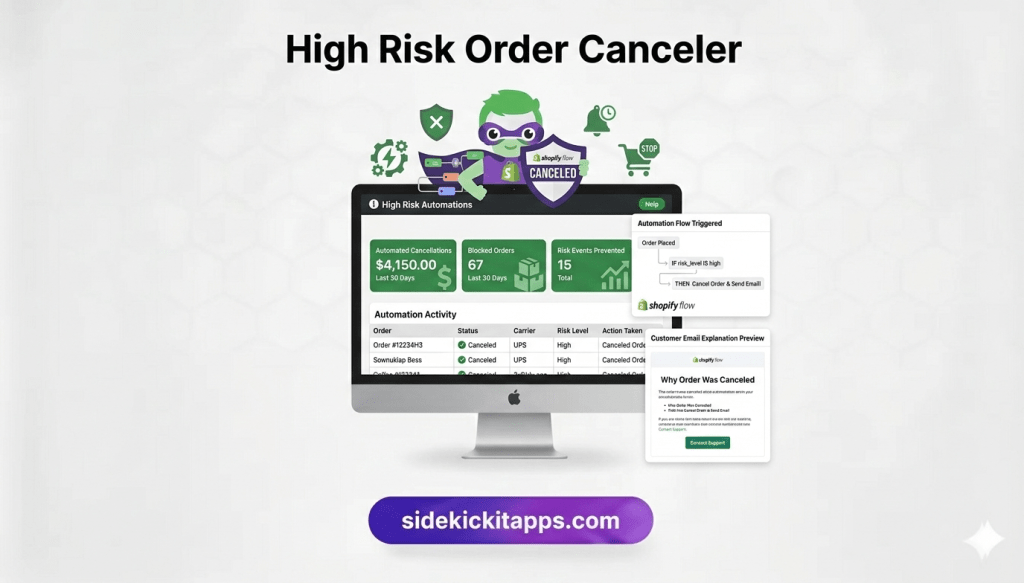
  • Recipe: The “High-Risk Fraud” Auto-Canceler

    Recipe: The “High-Risk Fraud” Auto-Canceler

    PREREQUISITES:

    • Time: 120s
    • Access: Sidekick AI, Flow
    • Impact: High

    Stop chargebacks in their tracks by automatically canceling high-risk orders while you sleep

    Shopify flags fraudulent orders, but it doesn’t automatically stop them from moving through your fulfillment pipeline. If you use external shipping software, a high-risk order can easily slip through the cracks and be shipped before you have a chance to review it.

    The Sidekick Solution

    We are going to use Shopify Flow to build this automation. Instead of dragging and dropping blocks manually, we are going to give Sidekick an exact blueprint so it can generate the entire workflow for us instantly.

    Phase 1: The Setup Requirements

    While Shopify Flow has basic native email capabilities, sending formatted, reliable customer-facing emails through Flow requires a dedicated tool.

    Before we prompt Sidekick to build the logic, go to the Shopify App Store and install the FlowMail connector app. The best part? It is built directly by Shopify and is 100% free to use. It integrates directly into Shopify Flow as an “Action,” allowing you to send professional cancellation notices without hitting native email limitations or adding another monthly subscription to your bill.


    Phase 2: The Exact Prompt

    Create a Shopify Flow workflow that automatically protects against high-risk fraudulent orders with these exact specifications:
    TRIGGER: Order risk analyzed
    CONDITION: Check if orderRiskLevel == 'HIGH'
    ACTION 1 - Cancel order:
    Order ID: {{ order.id }}
    Reason: FRAUD
    Notify customer: false (we send custom email instead)
    Refund: true
    Restock: true
    Staff note: "Automatically cancelled by Flow due to high fraud risk"
    ACTION 2 - Send customer email via FlowMail:
    Customer ID: {{ order.customer.id }}
    Subject: "Order {{ order.name }} - Security Review Required"
    Reply-to: [YOUR STORE EMAIL]
    Email body:
    "Dear {{ order.customer.firstName }},
    We regret to inform you that your order {{ order.name }} has been cancelled due to security concerns identified during our fraud prevention review.
    For your protection and ours, we take security very seriously. If you believe this was done in error, please contact our customer service team.
    Your payment has been fully refunded and will appear in your account within 5-10 business days.
    Thank you for your understanding.
    Best regards,
    [YOUR STORE NAME]"
    Workflow name: "Cancel high risk orders automatically"
    Note: Requires FlowMail connector to be installed for the email action.

    copy the above prompt
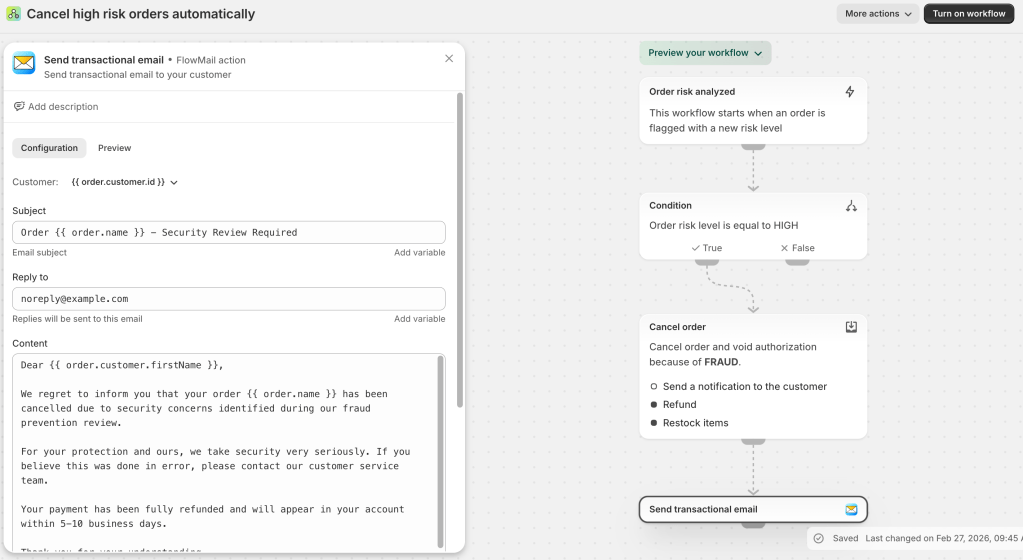

    Phase 3: Review & Customize

    Once Sidekick generates the workflow, it will open in your Shopify Flow editor. Before turning it on, you must make a few quick updates:

    • Update Placeholders: Click into the FlowMail “Send Email” action block and replace [YOUR STORE EMAIL] and [YOUR STORE NAME] with your actual store details.
    • Review the Logic: Double-check that the Condition is set to target exactly “High” risk (and not medium or low).
    • Check the Restock: Ensure the “Cancel order” action has the “Restock items” box checked so your inventory stays accurate.

    Phase 4: Testing & Activation

    Never activate an automation for live traffic without testing it first!

    • Turn it On: Click Turn on workflow in the top right corner of the Flow editor.
    • The Test: Shopify has a built-in “Bogus Gateway” for testing payments. If you use it to place a test order with a specific “fail” credit card number (which Shopify documents in their help center), it will intentionally flag as high risk.
    • Verify: Check your Flow’s “Run history.” You should see the workflow trigger, follow the “High Risk” path, cancel the order, and trigger the FlowMail notification.

    FAQ & Troubleshooting: Let Sidekick Fix It

    If your workflow doesn’t behave exactly as expected, Shopify Flow will usually give you a specific error message in the “Run history” tab. Here is how to use Sidekick to debug it.

    My FlowMail action failed to send!

    The Problem: Usually, this means the Liquid variables (like the customer’s email address) weren’t formatted correctly in the FlowMail action block, or the app wasn’t installed properly. Ask Sidekick: “I am using the FlowMail app in Shopify Flow. What is the exact variable I need to type into the ‘To’ field to ensure the email goes to the customer who placed the order?”

    The order was canceled, but the items weren’t restocked.

    The Problem: If you have multiple fulfillment locations, the “Cancel order” action might not know where to put the inventory back. Ask Sidekick: “My Shopify Flow is canceling high-risk orders, but it is not restocking the inventory. Can you walk me through how to configure the ‘Cancel order’ action in Flow to handle multi-location restocking?”

    It’s canceling Medium risk orders too!

    The Problem: Your condition logic might be set to “Contains” instead of “Equal to”, or you might have accidentally targeted the wrong risk criteria. Ask Sidekick: “My Shopify Flow is triggering on the wrong risk levels. Can you confirm the exact path in the Flow condition builder to target the final, overall ‘High’ risk recommendation, rather than individual risk flags?”

    What other repetitive admin tasks are eating up your week? Drop your biggest operational headaches in the comments below, and let’s see if we can build a Sidekick recipe to automate them.
  • Late Delivery Radar: The Global Refund Auditor

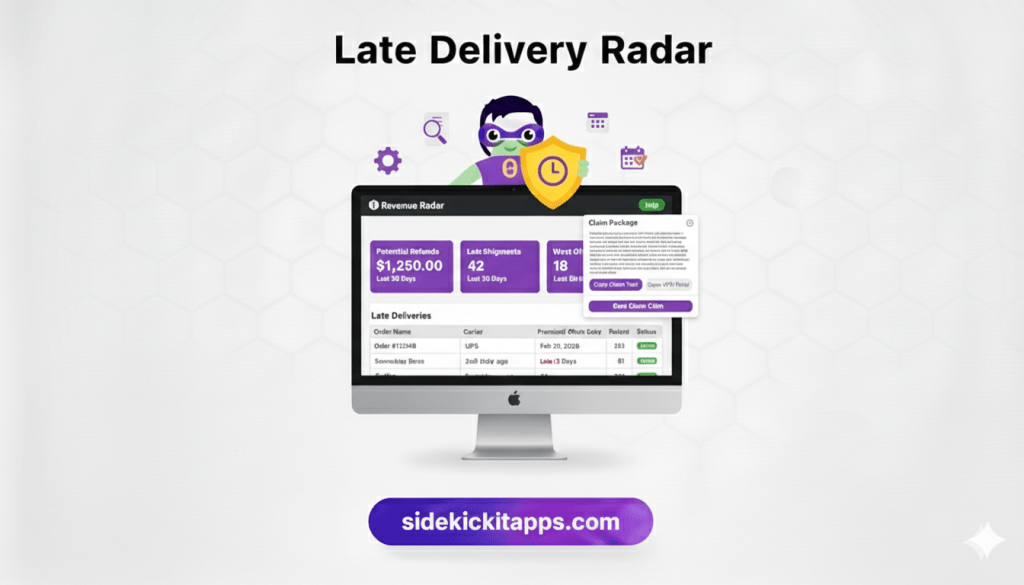
    Late Delivery Radar: The Global Refund Auditor

    PREREQUISITES:

    • Time: 5 mins
    • Access: Sidekick AI
    • Plan: Grow / Advanced / Plus

    The Hidden Carrier Debt

    Carrier guarantees are the most overlooked asset in ecommerce. If you pay for an expedited service and it arrives late, you are legally entitled to a 100% shipping refund. However, tracking these across different countries with varying carriers (USPS vs. Royal Mail vs. Canada Post) and different date formats is an operational nightmare. You’ve already paid for the speed—don’t let the carriers keep the change just because the data is messy.

    The Solution: Sidekick It

    The Late Delivery Radar is globally aware. Before it even starts auditing, it performs a “Localization Handshake.” By specifying your country, the app prepopulates the exact carriers, service levels (SLAs), and refund portal URLs relevant to your region. It even adjusts date formats so you aren’t confused by $MM/DD$ vs $DD/MM$ when filing claims.

    The Exact Prompt

    IMPORTANT: Before building, ask me which country this store operates in (e.g., United States, Canada, United Kingdom, Australia, India, Germany, etc.).
    This is required because:
    Carrier names and service levels vary by country (e.g., USPS in US vs Royal Mail in UK).Date formats differ ($MM/DD/YYYY$ in US vs $DD/MM/YYYY$ internationally).
    Carrier refund policies and portal URLs are country-specific.
    Once I specify the country, build the "Late Delivery Radar" app with these features:
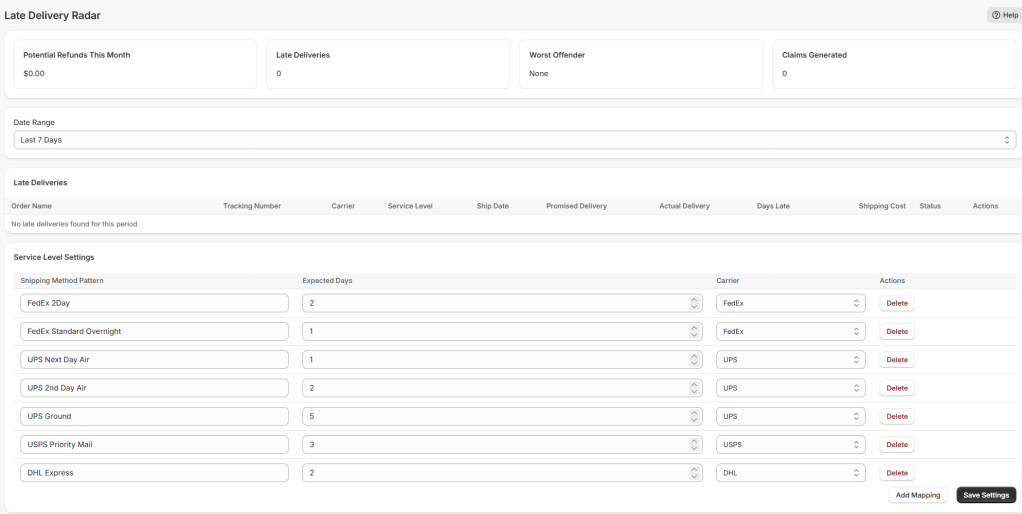
    1. LOCALIZED SLA SETTINGS:
    Pre-populate the mapping table with the top 3 carriers for that country.
    Store mappings (e.g., "Royal Mail Special Delivery" = 1 day) in a shop metafield (namespace: 'sidekick', key: 'shipping_slas').
    2. ANALYTICS DASHBOARD:
    Display Metric Cards for "Potential Refunds" (local currency), "Late Shipments," and "Worst Offender Carrier."
    3. SMART AUDIT TABLE:
    Columns: Order Name, Carrier, Service Level, Expected Delivery, Actual Delivery, and Status.
    Logic: Calculate delivery delta using Business Days specific to the region. Flag orders where delivered_at exceeds the SLA.Format:
    Use the country's standard date format in all table views.
    4. CLAIM GENERATOR:
    "Generate Claim" button opens a modal with a pre-formatted text block tailored to that country's carrier requirements.
    Provide direct "One-Click" links to the specific carrier refund portals (e.g., UPS.com/claims for US, or the Canada Post business portal).

    copy the above prompt to get started .


    The Logic Flow: Global Localization

    • The Handshake: Sidekick starts by asking where you are based. This is the “Master Switch” for the entire app logic.
    • SLA Pre-population: If you say “UK,” the app loads Royal Mail and DPD. If you say “US,” it loads FedEx and UPS.
    • Regional Calculation: The app adjusts its calendar logic for regional business days and formats dates correctly for your local carrier’s claim forms.
    • Evidence Assembly: When a late delivery is found, the app generates a claim package using the specific terminology and portal links for your country’s carriers.

    The Holiday Factor > Because the app is localized, it can better account for regional bank holidays that carriers use to “reset” their delivery clocks. This means fewer denied claims for you.

    Currency Match > Ensure your Shopify store currency matches the country you select in the app. The “Potential Refunds” card pulls from your total_shipping_price_set, so a mismatch in country selection could lead to confusing math.

    Common Questions

    Sidekick Challenge” question to encourage comments.

    What if I ship internationally?

    The app is best used for your primary shipping region. If you are a US store shipping to the UK, select “United States” to track the outbound carrier (like UPS or DHL Express) that you actually pay the bill to.

    Why does date format matter?

    Carriers are notorious for denying claims if a date is “ambiguous.” For example, by using DD/MM/YYYY for UK claims, we remove the carrier’s excuse to reject your refund.

    Can I add custom carriers?

    Yes! Even after the app prepopulates the big players, you can manually add local couriers in the Settings modal.

    The Sidekick Challenge: Run the Radar for your specific country today. Even if you only ship 20 expedited packages a week, carrier error rates hover around 5-10%. That’s “free money” just sitting in the carrier’s pocket!

  • Revenue Radar: Your Financial Command Center

    Revenue Radar: Your Financial Command Center

    PREREQUISITES:

    • Time: 5 minutes
    • Access: Sidekick AI
    • Plan: Grow / Advanced / Plus

    Master Your Money Trail

    Revenue leakage often happens in the “gray areas” of Shopify—orders that are authorized but not captured, pending payments that never clear, or disputes that go unanswered because a deadline was buried in an inbox. Most merchants lack a single, bird’s-eye view of these critical financial states.

    The Solution: Sidekick It

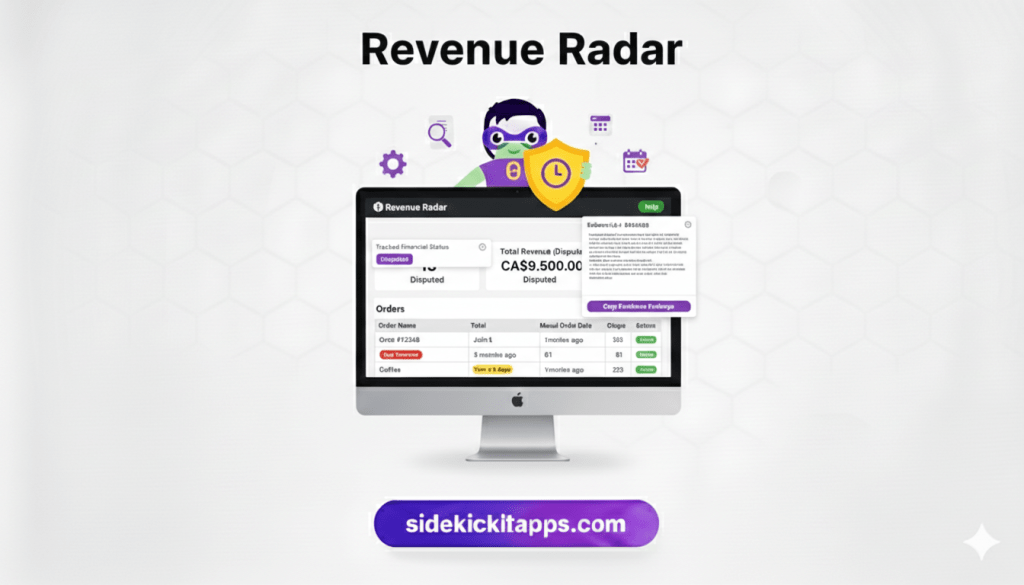
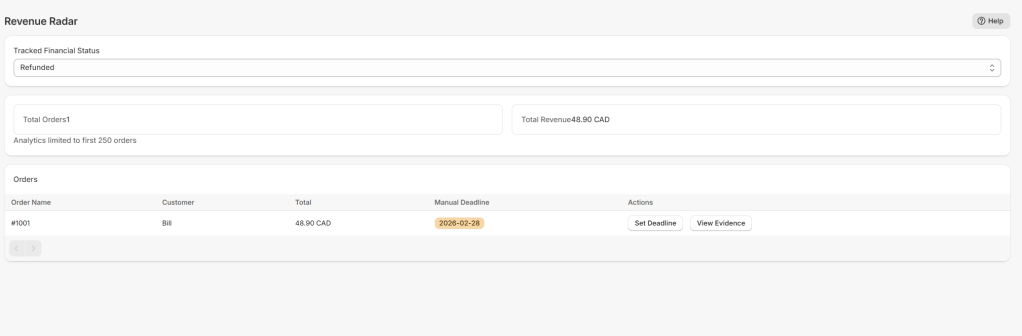
    Revenue Radar is a high-performance monitoring tool that bridges the gap between your order list and your bank account. It doesn’t just track disputes; it allows you to toggle between 8 different financial statuses, set manual urgency deadlines, and generate “Evidence Packages” that you can download as files or copy to your clipboard for instant dispute resolution.


    The Exact Prompt

    Create a Shopify admin app called 'Revenue Radar' that tracks and manages orders by financial status with deadline tracking and evidence collection.
    1. STATUS SELECTOR & ANALYTICS:
    - Dropdown with 7 financial statuses: Pending (default), Authorized, Partially Paid, Paid, Partially Refunded, Refunded, Voided
    - Auto-save selection to sidekick.chargeback_settings metafield and auto-refresh dashboard
    - Display 'Total Orders' and 'Total Revenue' metric cards for selected status (first 250 orders)
    - Show 'Showing first 250 orders' note when limit reached
    2. DYNAMIC ORDERS TABLE:
    - Columns: Clickable Order Name (opens shopify://admin/orders/{id} in new tab), Customer, Total, Manual Deadline (badge), Actions
    - Deadline badges: Red/Critical if ≤48h, Yellow/Warning if ≤7 days, show 'Overdue' if past
    - Actions: 'Set Deadline' (opens date picker modal) and 'View Evidence' (opens evidence modal)
    - Cursor-based pagination with 25 orders per page
    3. DEADLINE CALCULATION WITH TIMEZONE FIX:
    - Parse deadline date as end of day (23:59:59) in user's local timezone using: new Date(deadline + 'T23:59:59')
    - Calculate hours remaining from current time to end of deadline day
    - Display as hours if ≤48h or days if ≤7 days
    - This ensures "tomorrow" means the full day tomorrow in the user's timezone, not midnight UTC
    4. EVIDENCE MODAL WITH RISK DATA:
    - Query order details including: customer info, fulfillments (tracking numbers/URLs), risks (level, message), lineItems
    - Display formatted Evidence Package in read-only text area (15 rows) with sections: Order Info, Customer Details, Risk Assessment, Fulfillment Info, Line Items, Total
    - Download button with icon exports as 'Evidence-{OrderName}.txt'
    - IMPORTANT: Only query risks when 'View Evidence' is clicked (not on page load or installation)
    - Clear evidenceText state when modal closes via onHide handler
    5. MODALS & STATE MANAGEMENT:
    - All modal close buttons use onClick={() => modalRef.current?.hideOverlay()} (NOT commandFor/command)
    - Evidence modal has onHide={handleEvidenceModalClose} to clear state
    - Help modal with 5-step usage guide and limitations
    6. TECHNICAL SPECS:
    - Store deadlines in sidekick.dispute_deadlines metafield (JSON mapping order IDs to dates)
    - Store settings in sidekick.chargeback_settings metafield
    - Use shop.id as ownerId for metafields
    - Use s-date-picker (type='single'), s-text-area (readOnly), s-spinner for loading states

    copy the text above for your Sidekick prompt


    The Logic Flow: From Alert to Action

    • Monitor: Select “Disputed” or “Authorized” from the top dropdown to instantly see where your capital is tied up.
    • Track: When you identify a dispute, use the “Set Deadline” button. The Radar will now visually flag that order as it gets closer to the bank’s cutoff.
    • Prepare: Click “View Evidence.” The app automatically pulls the tracking URL, delivery timestamp, fraud risk analysis, and line item details.
    • Resolve: Copy the pre-formatted text for a quick reply, or Download the .txt file to keep as a permanent record for your accounting or legal team.

    The Click-Through Advantage
    The order names in the table are live links. If you see a high-risk “Disputed” order, click it to jump straight into the native Shopify Order page to verify customer notes before submitting your evidence.

    The 250 Limit
    To keep the app lightning-fast, analytics are calculated based on the first 250 orders. If you are a high-volume store with more than 250 active disputes (ouch!), use the paginated table to work through the list.

    Common Questions

    How do I download the evidence?

    Inside the “View Evidence” modal, there is a dedicated download button. It creates a .txt file on the fly, which is perfect for uploading as an attachment to support tickets.

    Can I change the status names?

    The app uses Shopify’s native financial statuses to ensure data accuracy, but you can use the Help modal to understand exactly what each status represents.

    Where is the data stored?

    All your settings and deadlines are stored in your store’s Metafields. This means the data is yours and stays with your store even if you reset the app.

    The Sidekick Challenge: Switch your Revenue Radar to “Authorized.” Look for any orders older than 3 days. If the payment hasn’t been captured, you might be at risk of the authorization expiring. Capture those funds today!

  • VIP Churn Radar: Stop Your Best Customers from Ghosting

    VIP Churn Radar: Stop Your Best Customers from Ghosting

    PREREQUISITES:

    • Time: 2 min
    • Access: Sidekick AI
    • Impact: High

    The “One-Hit Wonder” VIP

    It is 5x more expensive to acquire a new customer than to keep an old one. Yet, many stores allow their highest-spending customers to drift away simply because they don’t have a visual “radar” to spot the silence. A VIP who spent $500 three months ago is an asset at risk. If you aren’t tracking Days Since Last Purchase (DSLP) specifically for your top-tier spenders, you’re leaving your most predictable revenue to chance.

    The Sidekick Solution

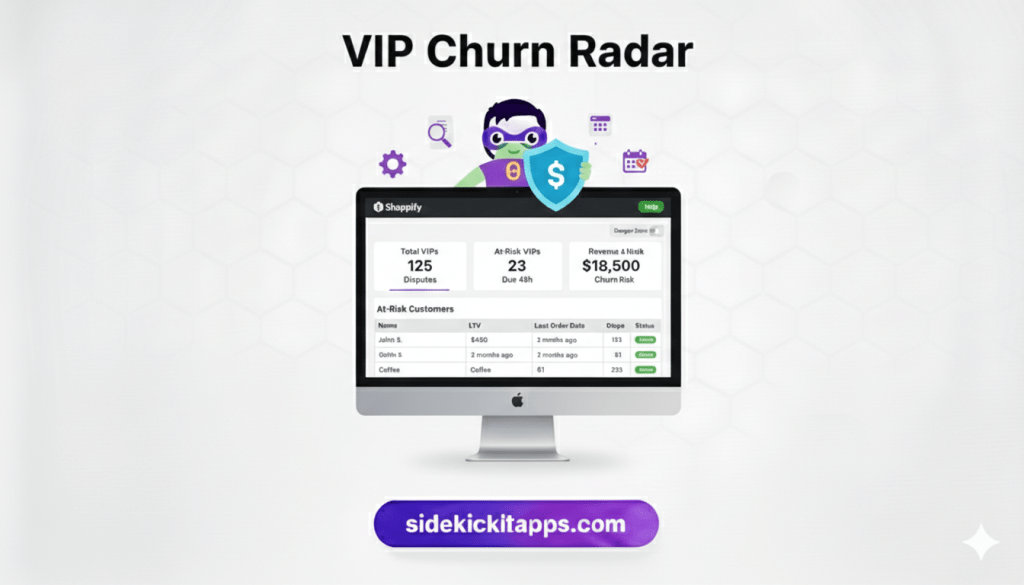
    The VIP Churn Radar is an early-warning system for your customer base. It automatically segments your high-value customers and flags them the moment they cross into a “Danger Zone” of inactivity. By pulling their specific purchase history into one view, it allows you to reach out with a personalized reason to return, turning “ghosts” back into active buyers.


    The Exact Prompt

    Build a custom Shopify admin app called "VIP Churn Radar" that identifies high-value customers at risk of churning with the following requirements:
    1. MAIN DASHBOARD:
    3 Analytics Cards:
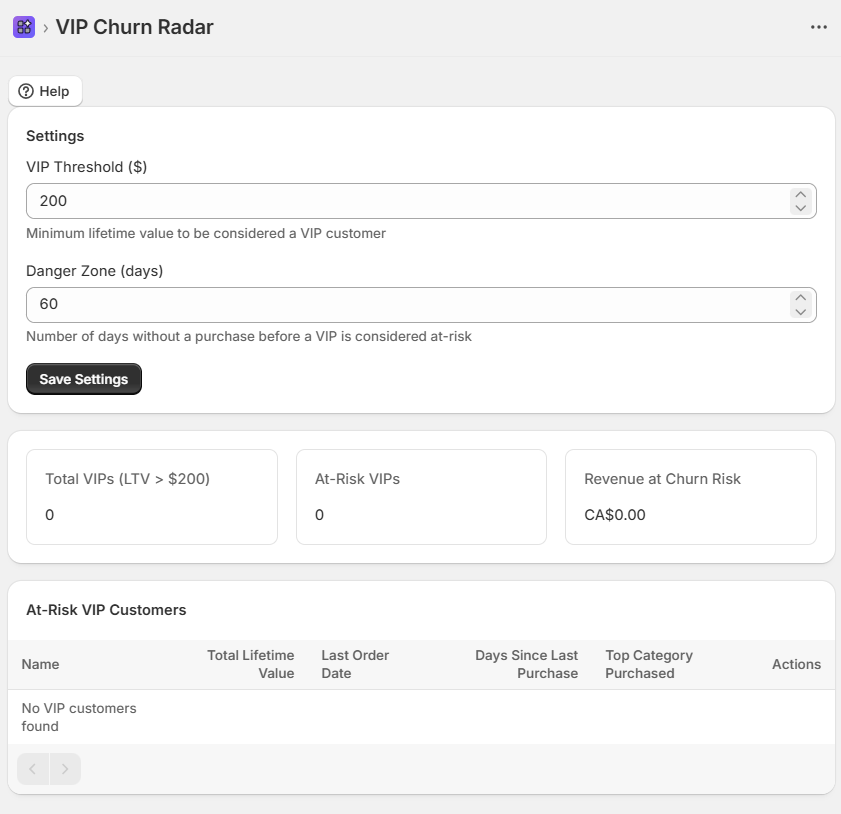
    "Total VIPs" (Count of customers with LTV > $200)
    "At-Risk VIPs" (VIPs with no purchase in the last 60 days)
    "Revenue at Risk" (Sum of LTV for all At-Risk VIPs)
    2. AT-RISK CUSTOMER TABLE:
    Columns: Name, LTV (Total Spent), Last Order Date, DSLP (Days Since Last Purchase), and Top Category.
    Include a "Danger Zone" slider in the settings (default 60 days) to dynamically filter the table.
    3. CUSTOMER INSIGHTS & ACTIONS:
    Calculate "Top Category" by identifying the collection or product type the customer has purchased most frequently.
    Include a "Draft Outreach" button for each row that generates a summary of the customer's favorites and last purchase to assist in personalizing a re-engagement email.
    4. TECHNICAL REQUIREMENTS:
    Use the customers GraphQL query; filter using total_spent and last_order_date.
    Store the "Danger Zone" threshold and VIP LTV minimum in shop metafields (namespace: 'sidekick', key: 'churn_settings').
    Ensure the table handles pagination if more than 50 VIPs are at risk.

    copy the contents above to past into Sidekick


    How It Works: The Retention Logic

    • LTV Segmentation: The app scans your customer database to find “VIPs” based on a lifetime spend threshold (e.g., $200+).
    • Inactivity Monitoring: It calculates the delta between today and the customer’s last_order_date.
    • The Radar Trigger: Once a VIP exceeds the “Danger Zone” (e.g., 60 days of silence), they are populated on your dashboard.
    • Contextual Recovery: Instead of a generic “We Miss You” blast, the app identifies their Top Category, allowing you to send a highly relevant update about new arrivals or refills in the specific department they love.

    Defining “VIP”
    Every store has a different “High Value” marker. If you sell luxury watches, a VIP might be $5,000+. If you sell coffee, it might be $150. Adjust the LTV threshold in the settings to match your specific business model.


    The Consumable Cycle
    If you sell products that run out (like skincare or supplements), set your “Danger Zone” to match your product’s lifespan. If a bottle lasts 30 days, your radar should trigger at 35 days.

    Common Questions

    How is LTV calculated?

    It uses the total_spent field from the Shopify Customer object, which accounts for all successful historical orders.

    Can I send the emails directly from the app?

    This version is designed to provide the data and context for high-touch outreach. You can use the “Draft Outreach” summary to send a truly personal message via your preferred email tool.

    What defines the “Top Category”?

    The app looks at the product_type or collection associated with the customer’s most frequent orders to help you suggest the most relevant products.

    The Sidekick Challenge: Identify the top 5 “At-Risk” customers on your radar today. Send them a personal, plain-text email mentioning their favorite category—no discount code needed—and see how many respond to the personal touch!

  • Smart Discount Protector: Stop Your Profit Margins from Eroding

    Smart Discount Protector: Stop Your Profit Margins from Eroding

    PREREQUISITES:

    • Time: 60s
    • Access: Sidekick AI
    • Plan: Grow / Advanced / Plus

    The “Discount Stacking” Trap

    It starts with a simple “Welcome” code. Then you launch a “Buy One Get One” automatic discount for a holiday. Before you know it, a customer has used both, stacked a “Free Shipping” code on top, and you’ve just sold a product for less than it cost you to manufacture. Discount stacking is a silent margin killer. If you aren’t monitoring how your discounts collide, you aren’t just giving away profit—you’re paying customers to take your inventory.

    The Solution: Sidekick It

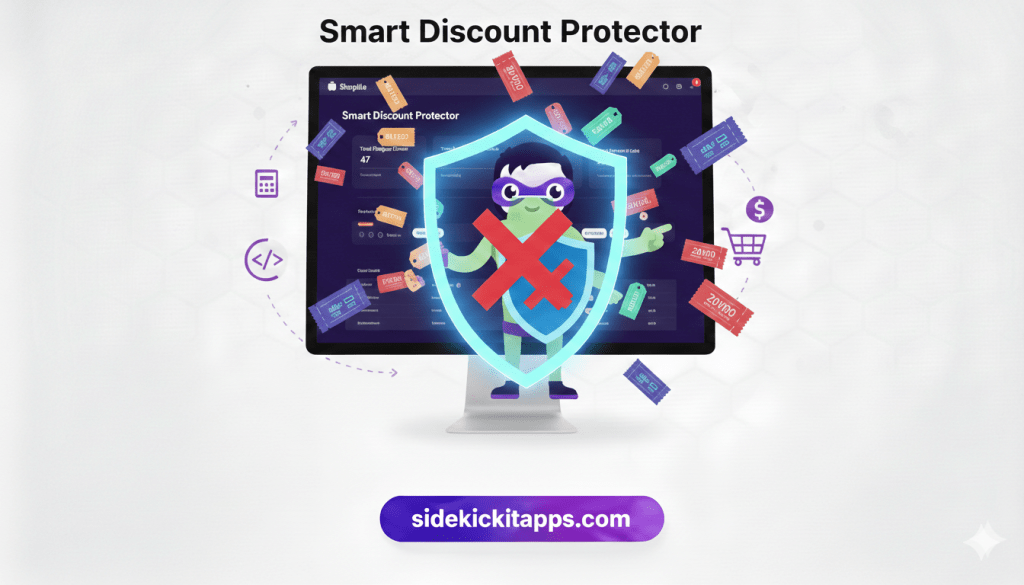
    To “Sidekick It” is to stop guessing and start auditing. Today, we’re building the Smart Discount Protector (aka the Discount Stacking Shield). This app provides a real-time command center that flags every order where total discounts exceed your safe thresholds. By identifying the “Most Stacked Codes” and calculating “Revenue at Risk,” you can fix your discount logic before the next big sale.

    PREREQUISITES

    • Shopify Plan: Must be on a plan with Sidekick access (Grow or higher).
    • Threshold Knowledge: Determine your “Warning” (e.g., 30%) and “Critical” (e.g., 40%) discount limits based on your COGS.
    • Sidekick Access: Ensure the Sidekick icon is active in your admin sidebar.

    The Exact Prompt

    Build a custom Shopify admin app called "Smart Discount Protector" (subtitle: "Discount Stacking Shield") that monitors and flags orders with excessive discount stacking.
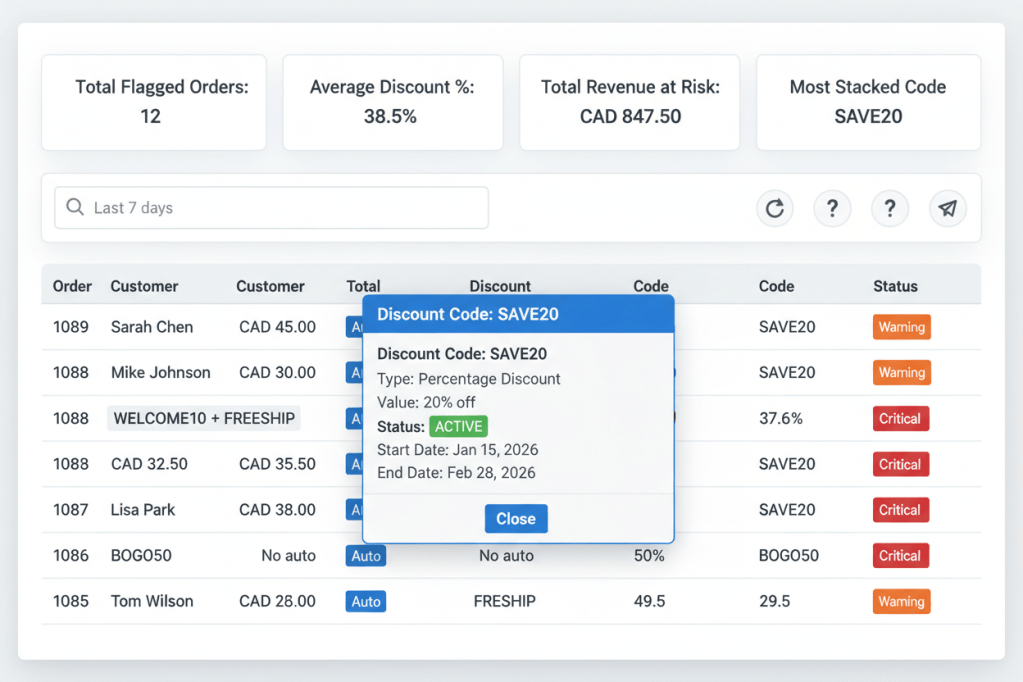
    Main Dashboard: > - Show 4 analytics cards: Total flagged orders, Average discount %, Total revenue at risk, and Most stacked discount code.
    Display a table of flagged orders including: Order number (clickable link), Customer, Total, Discount Amount, Discount %, and Status badge (Warning/Critical).
    Include "Search" and "Time Filters" (24h, 7d, 30d).
    Logic & Storage: > - Calculate Discount % as: (total discount / (current total + total discount)) × 100.
    Flag orders above configurable thresholds (Default: 30% Warning / 40% Critical).
    Store thresholds in shop metafields (namespace: 'sidekick', key: 'discount_protector_settings').
    Automatically filter out refunded/cancelled orders to prevent false positives.
    Features: > - Clickable discount codes that open a modal with full details (type, value, start/end dates).
    Color-coded badges: Orange (Warning), Red (Critical), Blue (Automatic Discount indicator).
    Pagination and Refresh functionality.

    Highlight the text in the box above and copy it to your clipboard to start your build.

    How the Shield Protects You

    • Continuous Monitoring: The app scans your completed orders across the selected time period.
    • Stacking Detection: It doesn’t just look at one code; it sums up Manual Codes + Automatic Discounts to find the true discount percentage.
    • Visual Alerting: Orders are instantly color-coded. A “Red” status means the order likely hit your profit floor.
    • Actionable Data: By clicking on a flagged code, you can see if that specific promotion is the culprit, allowing you to disable or modify the rule in Shopify immediately.

    Technical Note: Post-Purchase Analysis
    This app is a monitoring tool, not a checkout blocker. Because Shopify’s checkout is highly secure, this app analyzes orders after they are placed. Use the data gathered here to adjust your “Discount Combination” settings in the Shopify Admin to prevent future stacking.

    Caution: Set Your Floor
    “Critical” thresholds should represent your “Breakeven” point. If your average margin is 45%, a 40% discount is critical because after credit card fees and shipping, you are likely losing money.

    Common Questions from the Lab

    Does this stop the customer from checking out?

    No. It identifies problematic orders once they are completed. If an order is truly disastrous, you can use the clickable order link to jump into the admin and cancel/refund it before fulfillment.

    Why does it ignore refunded orders?

    Refunded orders often show “100% discount” in data exports because the revenue is zeroed out. The app filters these out so your analytics remain accurate to actual sales.

    What is “Revenue at Risk”?

    This is the total dollar amount you have “lost” to discounts on flagged orders. It helps you quantify exactly how much stacking is costing your business each month.

    The Sidekick Challenge: Run this app for the “Last 30 Days.” What is your Most Stacked Code? If it’s a “Welcome” code stacking with your main sale, it might be time to update your discount combination settings!

  • Recipe: The “Image-First” Auto-Publisher

    Recipe: The “Image-First” Auto-Publisher

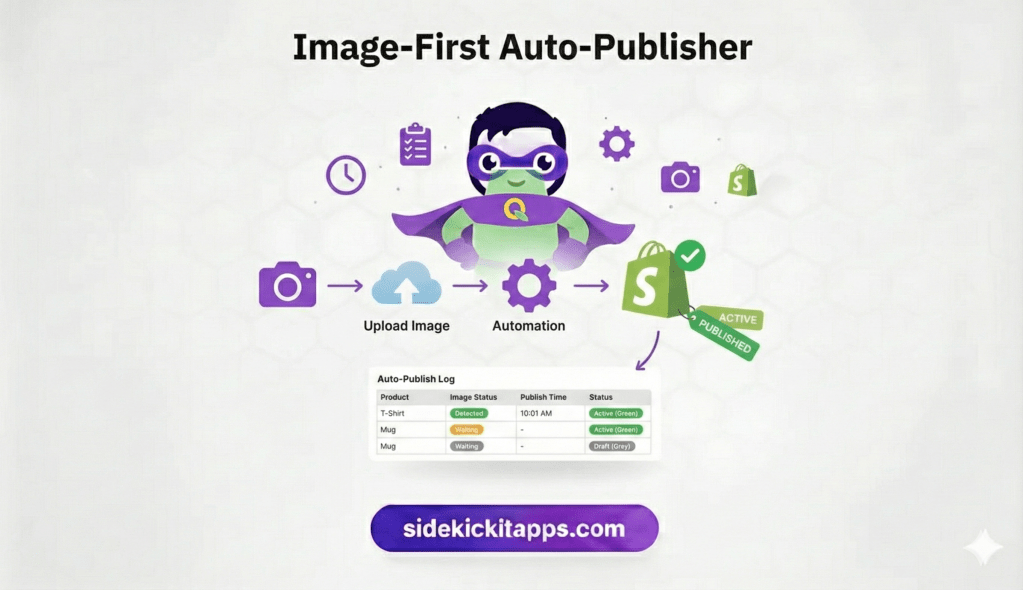
    Stop manual publishing. Automatically push products live the exact moment a photo is added.

    Author’s Note: I was scrolling through the Shopify subreddit recently and saw a merchant venting about a frustrating, yet incredibly common, problem. Their inventory app was syncing new products to their store perfectly, but the product images were coming in on a delay. The result? Half-empty “skeleton” listings were going live for customers to see. To prevent it, the merchant was stuck manually hitting “Publish” on hundreds of products every single day.

    It felt like the perfect challenge. Instead of writing custom code, I opened up Shopify Sidekick to see if we could architect a 24/7 background automation to fix it. Here is how we turned that Reddit pain point into a live solution in about 20 minutes.

    The Problem

    If you sync your inventory from an external ERP, drop-shipper, or CSV, those products often hit your Shopify admin as “skeletons”—just text and pricing, with no images. You definitely don’t want empty listings showing up on your storefront.

    The goal of this recipe is to build an automation that watches your store 24/7 and automatically “flips the switch” to publish a product only when it detects an image file has been attached.

    The Architect: Shopify Sidekick

    You don’t need to be a developer to build this, but you do need an architect. We are using Shopify Sidekick to fetch store-specific technical IDs, write our JSON payloads, and troubleshoot any errors we hit along the way.


    Phase 1: The Sidekick “Pre-Flight” Prompts

    Before we open Make.com, we need to gather your store’s unique technical data. Open Sidekick in your Shopify Admin and copy/paste these two prompts:

    Prompt 1: Get Your JSON Blueprint

    “I am building a Make.com automation to publish products to the Online Store. I need to send a PUT request to the Shopify Admin API. Please provide the exact JSON body required to set the published_scope to ‘web’ and the published_at to the current timestamp.”

    Prompt 2: Get your Publication ID (Just in case)

    “As a backup for my automation, please provide my Online Store Publication ID in the format gid://shopify/Publication/123456789.”

    (Save both of Sidekick’s answers in a notepad—you’ll need them in Phase 3!)


    Phase 2: Create the Shopify “Bridge” (Custom App)

    Standard third-party connections often lack the deep “write” permissions needed to change a product’s publication status. You must create a Custom App to give Make.com the right access

    • In your Shopify Admin, go to Settings > Apps and sales channels > Develop apps.
    • Click Create an App and name it “Sidekick Auto-Publish.”
    • Click Configure Admin API scopes. Search for and check these four boxes: read_products, write_products, read_publications, and write_publications.
    • Click Install App.
    • Click “Reveal token once.” ⚠️ STOP AND COPY THIS TOKEN NOW. Store it somewhere safe. Once you close this window, Shopify will never show it to you again.

    Phase 3: Building the Make.com Blueprint

    Log into Make.com (the free tier is perfect for this) and create a new Scenario.
    NOTE: If at any time you need clarification, just tell Sidekick where you are in the process, and where you are stuck.

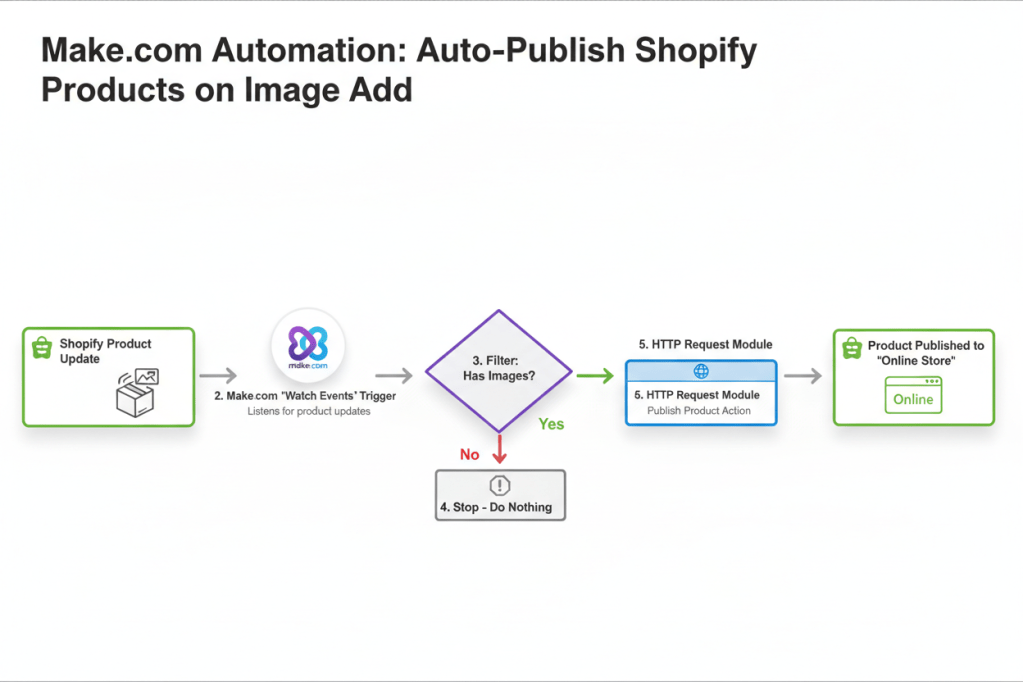
    Important Make.com Quirk: You cannot create a logic filter between modules until both modules exist on the canvas. So, we will build the Trigger, then the Action, and then connect them with our Filter.

    Step 1: The Trigger (Watch for Updates)

    • Module: Shopify -> Watch Events.
    • Webhook: Click Add to create a new webhook named “Image Check.”
    • Connection: Choose Add, then select Custom Connection. Paste the API Token you saved from Phase 2.
    • Topic: Type and select products/update. (This tells Make to wake up every time a product is altered).

    Step 2: The Action (The Publisher)

    • Module: HTTP -> Make a request. (Place this right next to your Shopify module).
    • URL: https://your-store-name.myshopify.com/admin/api/2024-01/products/{{1.id}}.json (Note: Replace your-store-name with your actual store prefix. Replace {{1.id}} by clicking into the field and mapping the Product ID from your Shopify module).
    • Method: PUT
    • Headers: Click “Add item” twice to add two headers. Header 1 Name: X-Shopify-Access-Token | Value: (Paste your API Token from Phase 2). Header 2 Name: Content-Type | Value: application/json.
    • Body Type: Raw
    • Content Type: JSON (application/json)
    • Request Content: Paste the JSON code Sidekick gave you in Phase 1. It should look exactly like this:
    {
    "product": {
    "id": {{1.id}},
    "published_scope": "web",
    "published_at": "{{now}}"
    }
    }

    Step 3: The Logic Gate (The Filter)

    • Now that you have two modules connected, click the dotted line between them to “Set up a filter.”
    • Label: “Is Image Present & Is Hidden?”
    • Condition 1: Images[]: URL | Exists (This ensures an actual image file is attached).
    • Condition 2: Published At | Does not exist (Crucial: This prevents an “infinite loop” where the automation keeps trying to publish a product that is already live).

    Phase 4: Testing & Activation

    • Prep: Go to Shopify. Create a test product with no image and leave it as Draft/Unpublished.
    • Test: In Make.com, click the “Run Once” button at the bottom left. It will start spinning.
    • Trigger: Go back to your Shopify test product, upload an image, and hit Save.
    • Verify: Watch Make.com. You should see a green checkmark pass through the filter and hit the HTTP module. Go back to Shopify—your product should now be “Active” and published to your Online Store!
    • Go Live: Toggle the Make.com scenario to ON and let it run in the background.

    FAQ & Troubleshooting: Let Sidekick Fix It

    When building automations, errors aren’t a sign of failure—they are just part of the process. If your Make.com scenario throws a red error bubble, don’t panic. Copy the error, and let Shopify Sidekick act as your senior developer. Here are the most common issues and exactly how to use Sidekick to solve them:

    The HTTP module throws a “401 Unauthorized” error.

    The Problem: Shopify is blocking the request. This usually means your API token is incorrect, expired, or your Custom App is missing the right permissions.
    Ask Sidekick: “I am sending a PUT request to update a product in Make.com, but I am getting a 401 Unauthorized error. Can you list the exact Admin API scopes my Custom App needs to have enabled to allow write_publications and write_products?”

    The HTTP module throws a “422 Unprocessable Entity” error.

    The Problem: Your API token works, but Shopify doesn’t understand the data you are sending. This is almost always a typo or formatting error in your JSON body (like a missing comma or quotation mark).
    Ask Sidekick: “I am getting a 422 error in Make.com when trying to publish a product. Here is the JSON I am putting in the Request Content field: [Paste your exact JSON]. Can you rewrite this to fix any formatting errors?”

    Make.com says “Module references non-existing module ‘1’”

    The Problem: Make.com assigns numbers to modules based on the order you create them. If you deleted a module and added a new one, your Shopify trigger might be module 2 instead of module 1.
    The Fix: Delete {{1.id}} from your URL or JSON body, type {{, and select the correct numeric Product ID from the dropdown list.

    Products without images are still getting published!

    The Problem: Your Make.com filter is too broad. If you just check if “Image” exists, it might trigger on empty data brackets. You need to verify the image source URL actually exists.
    Ask Sidekick: “My Make.com webhook is triggering even when an image isn’t present. What exact field from the Shopify products/update webhook payload should I filter by to guarantee an image file is actually attached?”

    The REST API isn’t working for my specific store setup.d!

    The Problem: Sometimes, depending on your store’s complex sales channels, the standard HTTP REST method won’t push the product to the Online Store. You need to use Make.com’s “Make a GraphQL API call” module instead.
    Ask Sidekick: “The HTTP PUT method isn’t publishing my product to the Online Store correctly. I want to use Make.com’s ‘Make a GraphQL API call’ module instead. Can you write the exact GraphQL mutation and variables I need to publish a product, using my Online Store Publication ID?” (This is why we got that ID in Phase 1!).


    Time to Start Building!

    Building custom automations doesn’t have to be intimidating. With Sidekick acting as your co-pilot, you can easily bridge the gap between “I wish my store could do this” and actually making it happen. This image-first auto-publisher is just one example of how a few strategic prompts can save you hours of manual clicking every single week.

    So, what manual task are you going to hand over to the robots next? If you have a workflow headache you’re trying to solve, drop a comment below or reach out. Let’s see if we can build the next recipe together.

  • Quantity Discount Manager: Tiered Pricing Made Easy

    Quantity Discount Manager: Tiered Pricing Made Easy

    PREREQUISITES:

    • Time: 90s
    • Access: Sidekick AI
    • Impact: High

    The “Single Item” Ceiling

    High-volume stores know that the secret to scaling isn’t just getting more customers—it’s getting current customers to buy more. Encouraging “Stock Up and Save” behavior is difficult if you’re manually managing complex discount codes or using apps that clutter your product pages. If you aren’t rewarding bulk purchases, you’re missing out on a massive opportunity to lower your shipping-cost-to-revenue ratio and skyrocket your AOV.

    The Solution: Sidekick It

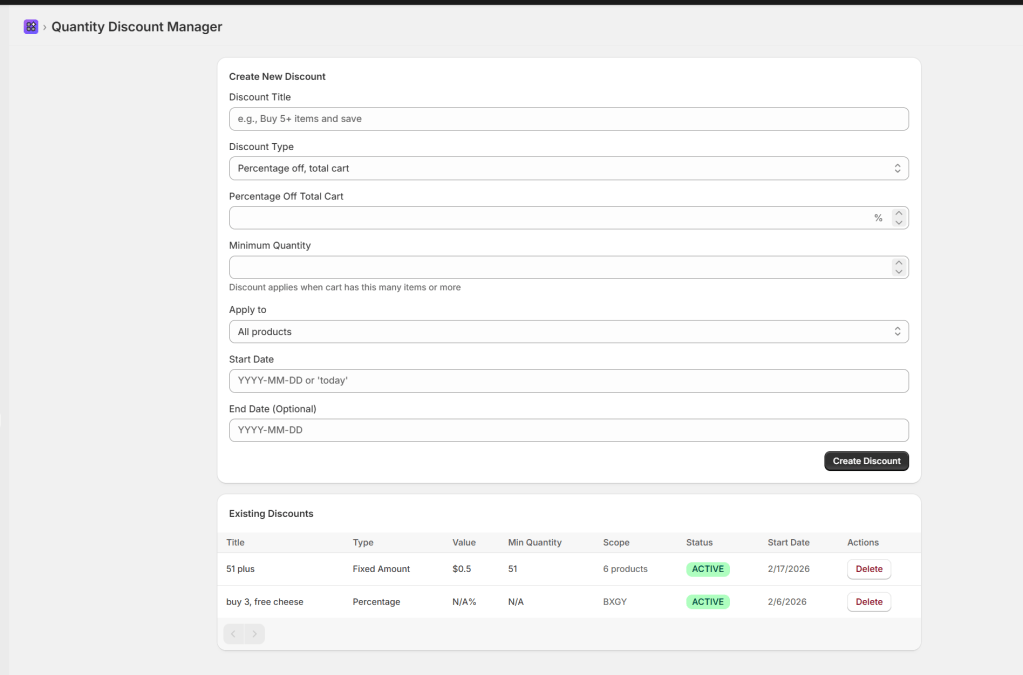
    Today, we are building the Quantity Discount Manager. This app gives you a dedicated command center to create and manage automatic tiered pricing. Whether you want to offer “$10 off when you buy 3” or “20% off the whole cart at a 5-item threshold,” this tool handles the logic. It allows you to target specific products, collections, or the entire store, all while syncing directly with Shopify’s native Automatic Discount engine.

    The Exact Prompt

    Create a custom Shopify admin app called "Quantity Discount Manager" with the following features:
    1. CREATE DISCOUNTS:
    Fields for Discount Title, Type (4 options: % off cart, % off item, $ off cart, $ off item), Value, and Min Quantity.
    "Apply to" scope: All products, Specific products (searchable picker), or Specific collections (searchable picker).
    Start Date (supports "today") and optional End Date.
    2. DISCOUNT LIST TABLE:
    Display ALL automatic discounts (Basic, BXGY, Free Shipping) in a paginated table (25 per page).
    Columns: Title, Type, Value, Min Quantity, Scope, Status, Start Date, and Actions (Delete).
    3. TECHNICAL & VALIDATION:
    Use discountAutomaticBasicCreate mutation; send minimum quantity as a STRING.
    Use automaticDiscountNodes query to fetch all types.
    Required fields: Title, Value > 0, Min Quantity >= 1.
    Percentage cap at 100%; End date validation.
    Include Success/Error banners and loading states on all buttons.

    Triple-click the box above to copy the magic.

    How It Works

    • Rule Definition: You set a “Trigger” (e.g., 3 items) and a “Reward” (e.g., 15% off, or $1 off per item).
    • Targeting: You choose whether this applies to your entire catalog or a specific “Bulk Buy” collection.
    • Native Integration: The app uses Shopify’s discountAutomaticBasicCreate API. This means the discount is applied automatically at checkout without the customer needing to type a code.
    • Centralized Audit: The dashboard lets you see your new quantity rules alongside your existing Shopify “Buy X Get Y” or Free Shipping rules for a full bird’s-eye view.

    Technical Note:

    Unique Titles Shopify requires every Automatic Discount to have a unique title. If you try to name two different rules “Bulk Savings,” the API will return an error. Be descriptive: e.g., “T-Shirt Bundle – 3 Items.”

    Caution: Stacking Logic

    Shopify typically only applies one automatic discount at a time (the best deal for the customer). If you have a site-wide “10% off everything” and a “Buy 3 get 20% off,” Shopify will pick the winner. Ensure your quantity discounts are enticing enough to overrule smaller site-wide promos. The exception being if you have set up a free gift rule using the GWP Automator recipe on this site. That will still stack for you!

    Troubleshooting & Best Practices

    • Date Formatting: If you aren’t using the “today” shortcut, ensure your date is in YYYY-MM-DD format to satisfy the Shopify API.
    • The “Total Cart” Rule: Currently, the minimum quantity checks the total number of qualifying items in the cart. If you target a “Summer Collection” with a 3-item minimum, any combination of 3 items from that collection will trigger the deal.
    • Editing Rules: To prevent data conflicts, this app is “Create/Delete” only. If you need to change a 20% discount to 25%, simply delete the old rule and recreate it.
    • Zero-Value Errors: Always ensure your discount value is greater than 0. The app will block “0%” or “$0” entries to prevent checkout glitches.

    Common Questions

    Can I offer “Buy 2 get 1 free” with this app?

    This specific manager handles Basic discounts (percentage or amount off). While it displays your “Buy X Get Y” rules in the table for reference, you should use the native Shopify admin to create BXGY rules, then use this app to manage your tiered pricing.

    Does the customer see the discount on the product page?

    Because these are “Automatic Discounts,” they are natively calculated in the cart and at checkout. To show them on the product page, we recommend adding a “Bulk Savings” section to your product description or a theme announcement bar.

    Can I limit this to just one specific variant?

    Yes! When using the “Specific Products” scope, the searchable picker allows you to select the products that qualify for the quantity trigger.

    The Sidekick Challenge: Identify your “slowest” moving collection. Create a “Buy 4, Get 20% Off” rule for that collection specifically and watch your inventory turn over faster this month!

  • The GWP Automator: Professional Gift-With-Purchase Management

    The GWP Automator: Professional Gift-With-Purchase Management

    PREREQUISITES:

    • Time: 5–10 mins (including theme setup)
    • Access: Shopify Sidekick AI & Theme Editor
    • Plan: Grow / Advanced / Plus

    The “AOV” Ceiling

    Increasing your Average Order Value (AOV) is the fastest way to scale, but manually nudging customers to “add one more thing” is a constant battle. Gift-With-Purchase (GWP) promotions are a proven psychological trigger, yet they are notoriously difficult to manage. Most merchants end up with a mess of discount codes that don’t stack or bloated apps that slow down the site. If you can’t easily toggle rules or track which gifts are active, you’re missing out on your most powerful conversion lever.

    The Solution: Sidekick It

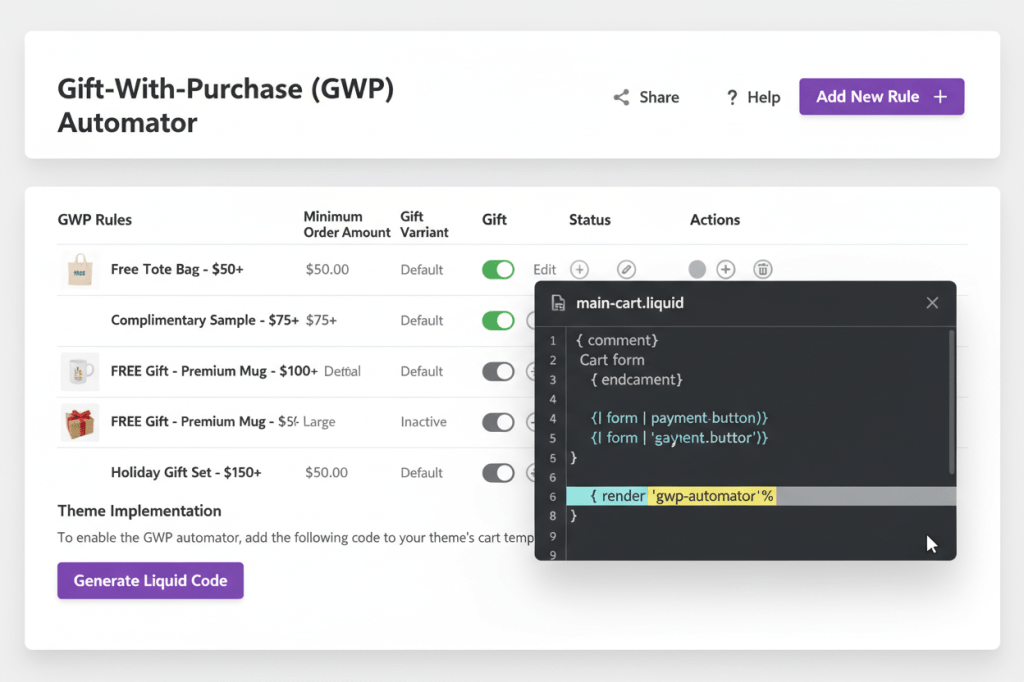
    Today, we’re using Shopify Sidekick to build the GWP Automator. This is a comprehensive rule management system that gives small merchants enterprise-level promotional power. It provides an intuitive interface to manage multiple tiers (e.g., Free Socks at $50, Free Tee at $150) and includes a built-in Theme Implementation Guide that generates the specific Liquid and AJAX code needed to make the magic happen on your storefront—zero monthly fees required.

    PREREQUISITES

    Before you begin, ensure your lab is ready:

    • Shopify Plan: You must be on the Grow, Advanced, or Plus plan to access Sidekick App Generation.
    • Sidekick Access: Ensure the Sidekick icon is visible in your Shopify Admin (Desktop only).
    • Theme Access: You’ll need access to your Shopify theme code (Online Store > Themes > Actions > Edit Code).
    • A “Gift” Product: A specific product (or variant) you intend to give as a gift, configured correctly (see Caution below).

    The Exact Prompt

    GWP Automator - Recreation Prompt
    Build a custom Shopify admin app called 'Gift-With-Purchase (GWP) Automator' that manages free gift promotional rules.
    Main Dashboard:
    Display all GWP rules in a sortable table
    Show: Rule Name, Threshold, Gift Product, Gift Variant, Status, Actions
    Share, Help, and Add New Rule buttons in header
    Edit and Delete actions for each rule
    Toggle switches for active/inactive status
    Create/Edit Rule Form:
    Rule name text field
    Threshold amount (currency input)
    Product search with thumbnail previews
    Variant selector (if product has multiple variants)
    Active/Inactive toggle
    Save and Cancel buttons
    Data Storage:
    Store rules in shop metafields (namespace: 'sidekick', key: 'gwp_rules')
    Each rule: id, name, threshold, giftVariantId, giftProductTitle, giftVariantTitle, giftProductImage, active, createdAt
    Theme Implementation Section:
    Appears below rules table when rules exist
    'Generate Liquid Code' button
    Opens modal with:
    Complete, production-ready Liquid code snippet
    Code that fetches GWP rules from metafields
    Automatic cart checking and gift addition/removal logic
    AJAX-based cart updates
    Gift marking with '_gwp_gift' property
    Comprehensive implementation instructions for ALL cart types (regular cart page, slide-out drawer, ajax cart)
    How to identify which cart type your theme uses
    Best practices for each cart style
    Important notes section with troubleshooting tips
    Generated Liquid Code Features:
    Reads shop.metafields.sidekick.gwp_rules
    Parses JSON rules
    Checks cart.total_price against thresholds
    Finds highest applicable rule
    Uses fetch API to add/remove gifts from cart
    Handles edge cases (gift already in cart, multiple rules)
    Automatically reloads cart after changes
    Features:
    Search products with GraphQL (250 results max)
    Fetch variants for selected products (including correct default variant IDs via GraphQL)
    Form validation (threshold greater than 0, product required)
    Success/error banners
    Empty state when no rules exist
    Sort rules by threshold (lowest to highest)
    Help Documentation:
    What is Gift-With-Purchase
    How to create a rule
    Selecting gift variants
    Best practices
    Setting up free gift products (pricing at $0, clear titles, inventory tracking, visibility management)
    Limitations
    Implementation options (Theme Integration as #1 recommended, Shopify Functions, Third-party apps)
    Using the Theme Implementation Guide section
    Next steps
    Share Button:
    Share modal with app overview
    Key features list (9 features)
    Who should use this app
    This exact recreation prompt
    Getting started steps
    Tips for success
    Technical Requirements:
    All modals have working close buttons with onClick handlers
    CRITICAL: When handling products with only default variants, fetch the actual variant ID via GraphQL query instead of string replacement
    Use proper error handling for all GraphQL queries
    Implement timestamp-based reload loop prevention in generated Liquid code

    Highlight the text in the box above and copy it to your clipboard to start your build.

    Key Features of Your New App

    • Unlimited Multi-Tier Rules: Set different gifts for different spend levels; the app automatically finds the highest applicable gift for the customer.
    • Smart Logic Handling: The generated code includes “Removal Logic”—if a customer removes items and drops below the threshold, the gift is automatically pulled from the cart.
    • Variant-Specific Gifting: Don’t just give away a “Shirt”—specify the exact SKU, size, and color to keep your inventory perfectly synced.
    • Persistent Storage: Rules are saved in your Shopify Metafields, meaning the data stays with your store even if you update your theme.Detail the features (e.g., “Audits your catalog,” “Instant Updates”).

    The GWP Logic Flow: How the Magic Happens

    1. Customer Action: A customer adds an item to their cart or updates a quantity.
    2. Theme Interception: Your theme’s AJAX cart update (often a JavaScript event) is triggered. The sidekick-gwp.liquid snippet, included in your theme, listens for this event.
    3. Rule Retrieval: The snippet reads your active GWP rules directly from the Shop Metafields (sidekick.gwp_rules).
    4. Cart Evaluation: The script calculates the current cart.total_price.
    5. Decision Point: It compares the cart.total_price against the thresholds of your active GWP rules.
      • If Threshold Met: The script checks if the highest applicable gift is already in the cart. If not, it uses the Shopify Fetch API (/cart/add.js) to add the free SKU.
      • If Threshold NOT Met: The script scans the cart for any items previously added by the GWP Automator (_gwp_gift property). If found, it uses the Fetch API (/cart/change.js) to remove them.
    6. UI Refresh: After the gift is added or removed, the script triggers a cart refresh, instantly updating the cart drawer or page to reflect the change.

    Technical Note: Theme Integration

    While Sidekick builds the manager, you must place the generated code into your theme to see it on the storefront. Use the “Generate Liquid Code” button inside your new app. If you use a Slide-out Drawer (like in the Dawn or Impulse themes), ensure you place the {% render 'sidekick-gwp' %} tag in your cart drawer snippet, not just the main cart page.

    Test in Preview: Add items to your cart in the duplicate theme preview to ensure the AJAX “Add to Cart” triggers correctly and the gift appears/disappears as expected, without refreshing the page. This prompt uses the [Mutation Name] to update live store data.”

    Caution: Modify with Care

    Before adding the generated code to your theme, always:

    Duplicate your theme: Go to Online Store > Themes > Actions > Duplicate. Never edit your live theme directly.

    Create a $0 Product: Set your gift product’s price to $0.00 and ensure “Track quantity” is enabled in its inventory settings.

    Troubleshooting Common Issues

    Gift isn’t appearing/disappearing instantly (or at all):

    Check Snippet Placement: Ensure the {% render 'sidekick-gwp' %} tag is in the correct theme file (e.g., cart-template.liquid, main-cart-footer.liquid, and your cart drawer file if applicable).

    AJAX Cart Event: Some highly customized themes might not trigger standard cart.update events. You may need to ask a developer to identify the specific JavaScript event your theme uses and modify the generated code to listen for it.

    Cache: Clear your browser cache or test in an incognito window.

    I’m getting a checkout error when the gift is added:

    Gift Product Status: Is your gift product’s status set to “Active” (not “Draft”)?

    Inventory Tracking: Is “Track quantity” enabled for the gift product, and is there available stock?

    Variant ID: Double-check that the Variant ID selected in your GWP rule exactly matches the active gift product variant in your Shopify admin.

    The gift appears but isn’t free:

    Gift Product Price: Is the gift product’s price (and its selected variant’s price) set to $0.00 in your Shopify product settings?

    Discount Stacking: If you have other “automatic discounts” active, they might conflict. Ensure your Shopify discount settings allow automatic discounts to combine, or pause other automatic discounts while testing.

    The app is working, but my site speed is slow

    This app uses Shopify’s native GraphQL API for product search and Metafields for storage, making it very performant. Site speed issues are unlikely to be caused by this app specifically but check for other heavy apps or unoptimized theme assets.

    Common Questions from the Lab

    How do I hide the $0 gift from my main shop?

    You don’t need to delete it or keep it as a draft. Simply leave it out of your “All Products” collection and navigation menus. The GWP Automator will find it via its specific Variant ID.

    Can customers just buy the $0 gift directly?

    If they find the direct link, yes. To prevent this, most Lab members add a note to the product description: “Promotional item: only available with qualifying purchases.”

    The gift appears but isn’t free:

    Gift Product Price: Is the gift product’s price (and its selected variant’s price) set to $0.00 in your Shopify product settings?

    Discount Stacking: If you have other “automatic discounts” active, they might conflict. Ensure your Shopify discount settings allow automatic discounts to combine, or pause other automatic discounts while testing.

    What if I have multiple GWP rules active? Which one fires?

    The generated Liquid code prioritizes the highest applicable threshold. If a customer qualifies for a $50 gift and a $100 gift, they will receive the $100 gift.

    The Sidekick Challenge: Check your current Average Order Value (AOV). Set your first GWP rule threshold at 15% higher than that average. Post in the comments if this nudge helped increase your weekly revenue!

  • Stop the Profit Leak: Build a Shopify RTO & Profitability Dashboard

    Stop the Profit Leak: Build a Shopify RTO & Profitability Dashboard

    PREREQUISITES:

    • Time: 90s
    • Access: Sidekick AI
    • Plan: Grow / Advanced / Plus

    The “RTO” Profit Killer

    Have you ever celebrated a high-revenue day, only to realize a week later that 20% of those orders were Returned to Origin (RTO)? For merchants—especially those offering Cash on Delivery (COD)—a sale isn’t a sale until the package is delivered. Between double shipping fees, restocking labor, and burnt ad spend, RTO can turn a “profitable” campaign into a massive loss. If you aren’t tracking your Net ROAS, you’re flying blind.

    The Solution: Sidekick It

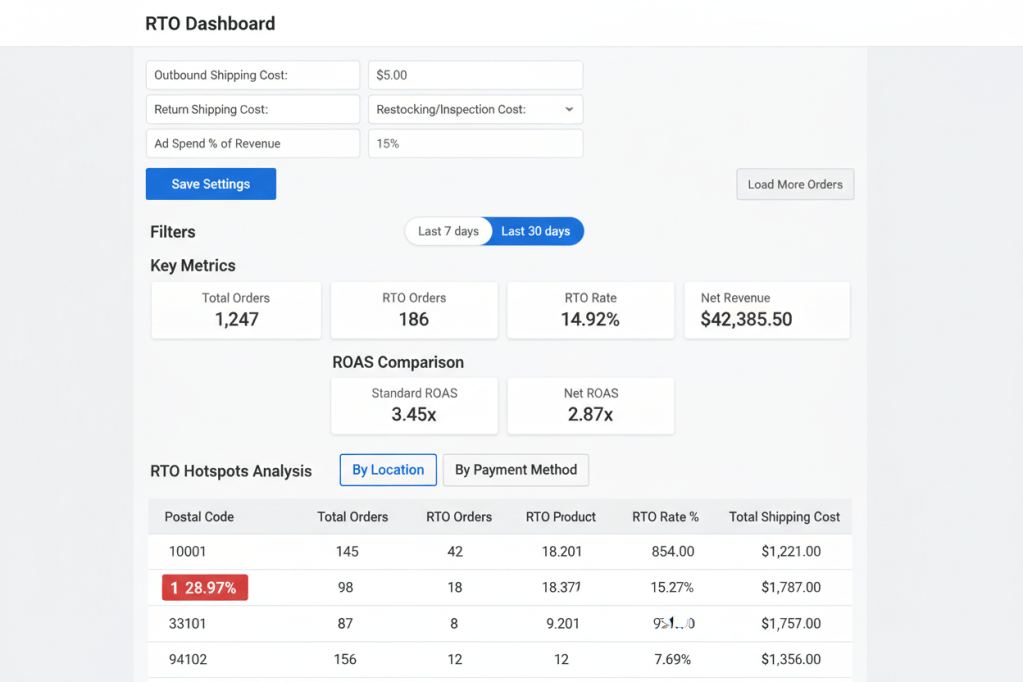
    Today, we’re using Shopify Sidekick to build a custom RTO Dashboard. This app creates a central command center to identify your “Hotspots”—the specific products, zip codes, and payment methods costing you money. By correlating your returns with actual shipping costs, you can finally see your true profitability without exporting a single spreadsheet.

    The Exact Prompt

    Create a brand new app called "RTO Dashboard" to track Return to Origin rates and true profitability.
    The app should:
    Display a Main Metrics bar: Total RTO %, Total Orders, Net Revenue, and a side-by-side comparison of Standard ROAS vs. Net ROAS.
    Include a Hotspot Analysis section with three tabs:
    "By Location": Table showing postal codes, RTO rates, and total shipping costs. Highlight zones >20% RTO in red.
    "By Product": Table showing SKUs with RTO rates and net profit per SKU. Flag items >30% RTO.
    "By Payment Method": Compare COD vs. Prepaid RTO rates and Average Order Value.
    Logic:
    Use orders tagged with "RTO" to identify failed deliveries.
    Allow user to input default costs: Outbound Shipping, Return Shipping, and Restocking fees.
    Calculate Net ROAS: (Revenue - Returns - Reverse Logistics Costs) / Ad Spend.
    Include Date Range filters (7, 30, 90 days).
    Keep the UI clean using Shopify Polaris components.

    Highlight the prompt above and copy it to your clipboard to start your Sidekick build.

    Key Features of Your New App

    • True Profit Metrics: Automatically calculates Net ROAS, accounting for shipping losses and restocking fees.
    • Hotspot Identification: Instantly isolate high-risk zip codes to optimize your shipping zones or COD availability.
    • Product Quality Audit: Spot “problem children” in your catalog that look like bestsellers but have unsustainable return rates.
    • Payment Comparison: Hard data to help you decide if the volume from COD is worth the cost of the returns.

    Technical Note: This app relies on the order tag “RTO”. To automate this, set up a Shopify Flow trigger: When Fulfillment Event Created -> If Status is “Returned to Sender” -> Add Order Tag: RTO. This ensures your dashboard stays updated in real-time

    Caution: Reverse logistics costs (the return trip) are often higher than outbound costs. Ensure you update your “Cost Settings” in the app regularly to reflect current carrier surcharges for accurate reporting.

    TIP: Review the post Monitor Shopify Flow Status with Heartbeat to keep an eye on your RTO tagging

    Common Questions

    Does this app actually process the refunds for me?.

    No. This is an Analytics Dashboard. It identifies where you are losing money so you can make better strategic decisions. Refunds are still handled through the standard Shopify “Orders” screen

    Can I track RTO for specific marketing channels?

    Yes! By inputting your ad spend for a specific period into the app settings, the dashboard will calculate your Net ROAS against your total order volume for that timeframe.

    Is this only useful for COD stores?

    Not at all. Even if you don’t offer COD, this tool is vital for identifying “serial returners” or products with sizing/quality issues that are hurting your bottom line.

    The Sidekick Challenge: Look at your “By Location” tab. Are there specific zip codes where your RTO is over 25%? Let us know in the comments if you’ve decided to “blacklist” certain zones to save your margins!

  • Product Quality Checker: Find Missing Images & SEO Gaps

    Product Quality Checker: Find Missing Images & SEO Gaps

    PREREQUISITES:

    • Time To Build: 90 Seconds
    • Access Level: Shopify Sidekick + Admin API
    • Primary Impact: Conversion Rate (CRO) & SEO Ranking

    The “Invisible” Catalog Errors

    As your catalog grows, “data decay” sets in. You have products live without images (a conversion killer), variants with zero weight (which breaks your shipping rates at checkout), and empty SEO fields that make you invisible to Google.

    Shopify’s native bulk editor is great for changing prices, but it’s terrible at finding what is missing. Manually auditing hundreds of products to find a single missing thumbnail is a waste of your talent.

    The Quality Command Center

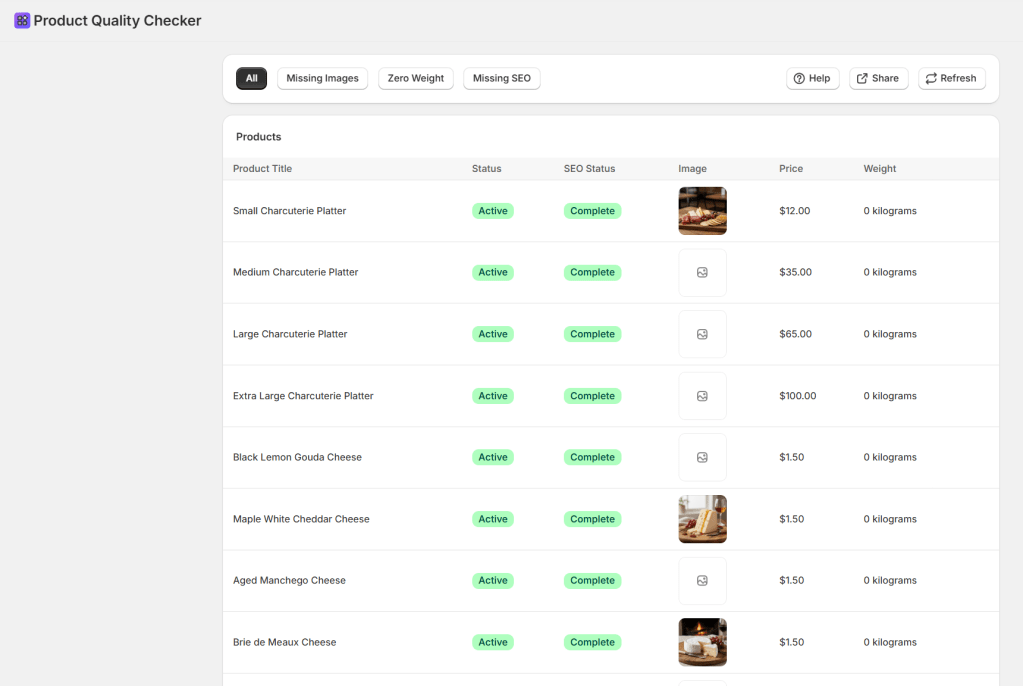
    This Blueprint builds a dedicated Product Quality Checker. It acts as a digital scanner for your store, instantly flagging products that are live but incomplete. Instead of clicking through every product page, you get a single-view table with “One-Click Filters” to hunt down missing assets and SEO gaps before they cost you a sale.

    The Exact Prompt

    Create a 'Product Quality Checker' app to identify catalog issues.
    Show products in a table with columns for: Title (link to editor),
    Status (Active/Draft badge), SEO Status (Complete/Missing badge),
    Image (thumbnail), Price, and Weight.
    Include 4 Quick-Filter buttons:
    1. 'All' (50 per page)
    2. 'Missing Images' (filters where image array is empty)
    3. 'Zero Weight' (scans variants for 0 weight)
    4. 'Missing SEO' (checks for empty description or SEO meta-description).
    Include a 'Refresh' button to reload data and pagination controls.
    Add a 'Help' button that opens a modal explaining how to
    improve weights, images, and SEO descriptions.

    Highlight the prompt above and copy it to your clipboard to start your Sidekick build.

    Product Quality Checker

    How to use your new Command Center

    • Missing Images: Instantly isolate products that lack a visual identity. Aim for 3-5 high-quality images per product to boost trust.
    • Zero Weight: Identify variants that will cause shipping calculation errors. Accurate weights are the backbone of your logistics.
    • SEO Status: View a Green (Complete) or Yellow (Missing) badge for every product. High-quality SEO requires unique descriptions of at least 150 words.
    • Direct Access: Click any Product Title to jump straight into the Shopify editor, fix the issue, and return to your dashboard.

    Pro-Tip: While this tool is an auditor, it relies on the write_products scope to allow future modifications. Always use the Refresh button after making bulk edits to see your “Error List” clear in real-time. Systematically review your catalog page-by-page to ensure 100% data integrity.

    Lab Discussion

    Why this matters?

    Conversion is built on trust. A product without an image or a checkout that crashes because of “Zero Weight” destroys that trust instantly. By building this tool, you’re not just organizing—you’re performing a professional-grade store audit in seconds, ensuring your store functions as well as it looks.

    Sidekick Challenge: What’s the biggest data gap you found? Let us know in the comments and we’ll help you customize your Hunter to scan for specific Metafield gaps!